> ## Documentation Index
> Fetch the complete documentation index at: https://docs.chatnode.ai/docs/llms.txt
> Use this file to discover all available pages before exploring further.
# Usage
> Manage resources effectively to stay within limits and maintain performance.
**Understanding Your Usage Dashboard**
The **Usage Dashboard** showcases essential metrics and tools for efficiently managing credits, agents, and users. Here’s a breakdown of the components and what they mean:
#### **1. Credits Overview**
* **Used Credits**: Displays the number of credits already consumed. In this example, 8,006 credits have been used.
* **Total Credits**: Indicates the total credits available in your plan (e.g., 51,000).
* **Projected Usage**: Shows the estimated credit consumption by the next billing period based on current trends (e.g., 20,683).
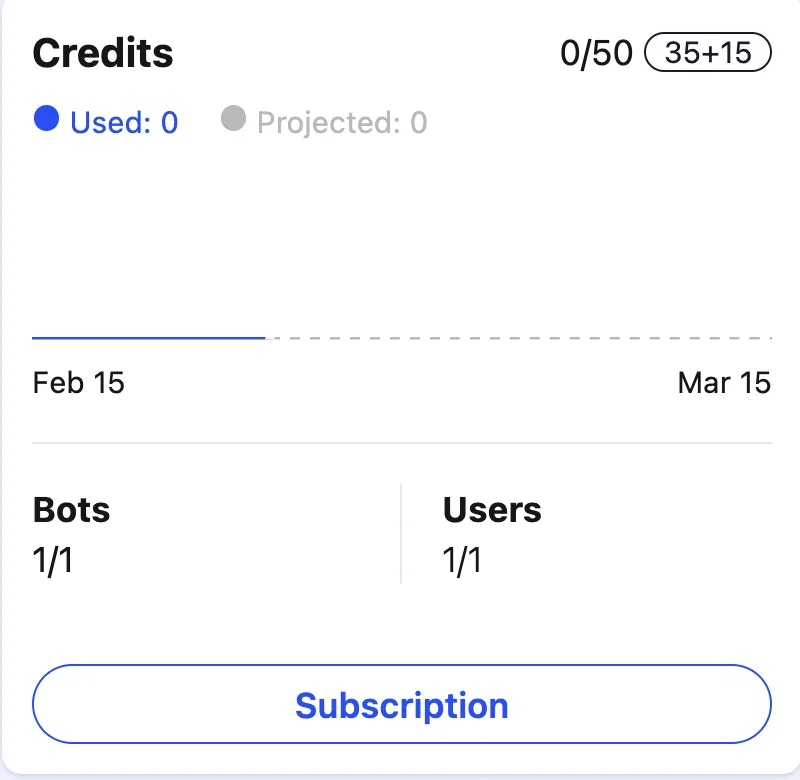 This allows you to monitor your consumption and plan accordingly to avoid running out of credits.
#### **2. AI Agent Usage**
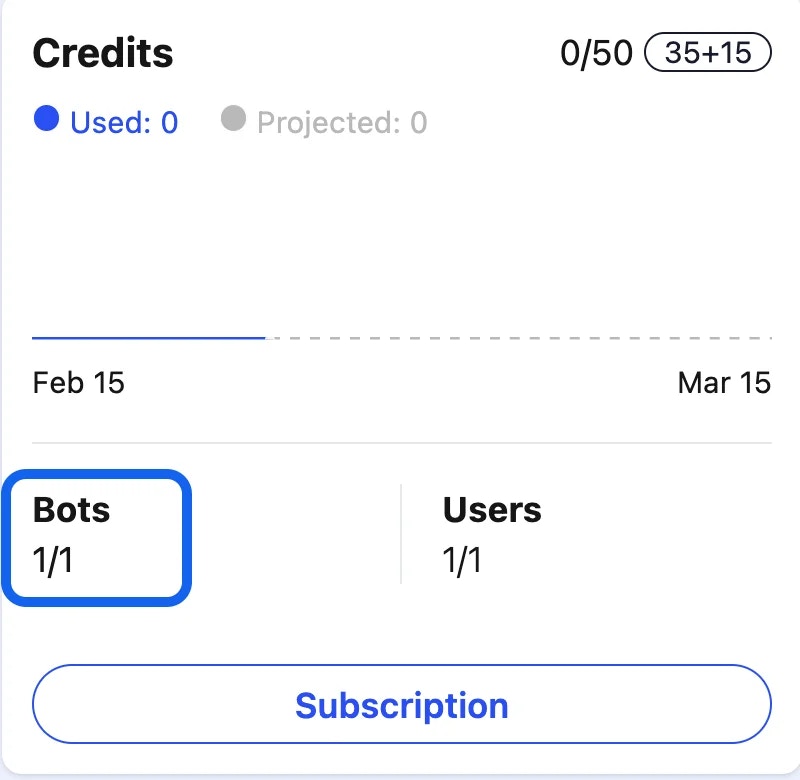
* **Active Agents**: Displays the number of agents in use (e.g., 16 out of the maximum 48 allowed). This helps track how many agent slots are remaining in your current plan.
This allows you to monitor your consumption and plan accordingly to avoid running out of credits.
#### **2. AI Agent Usage**
* **Active Agents**: Displays the number of agents in use (e.g., 16 out of the maximum 48 allowed). This helps track how many agent slots are remaining in your current plan.
 #### **3. User Management**
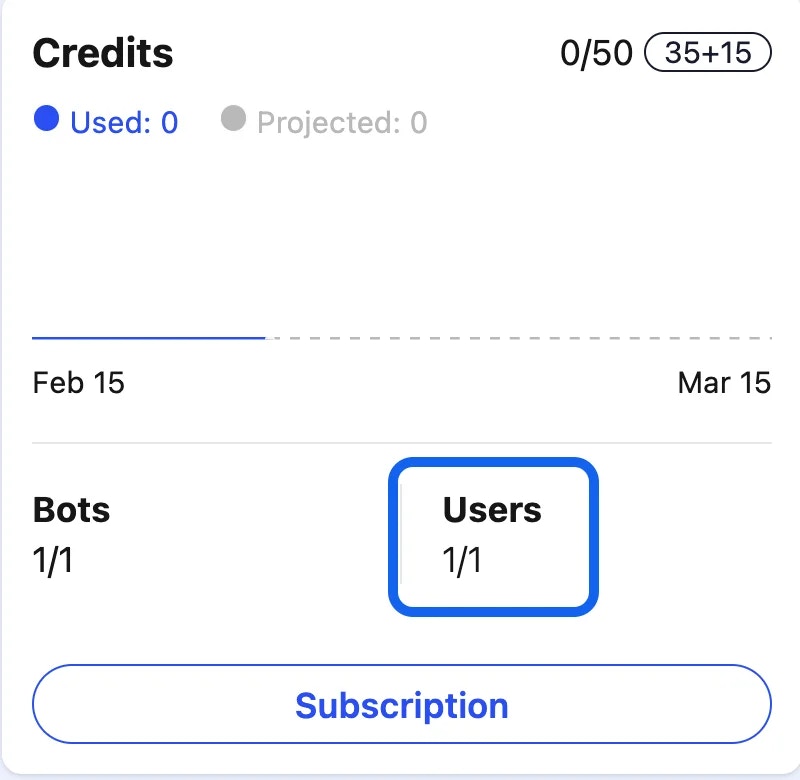
* **Active Users**: Shows the number of users actively utilizing the system (e.g., 3 out of 5 allowed). This is useful for managing team access and ensuring you stay within the limits of your plan.
#### **3. User Management**
* **Active Users**: Shows the number of users actively utilizing the system (e.g., 3 out of 5 allowed). This is useful for managing team access and ensuring you stay within the limits of your plan.
 #### **4. Subscription Management**
* The **Subscription** button provides direct access to your plan details. You can:
* Upgrade or downgrade your plan.
* Purchase additional credits, agents, or user slots.
* Enable **auto-recharge** to ensure uninterrupted service if credits run low.
**Best Practices for Monitoring Usage**
1. **Regular Monitoring**: Keep an eye on your credit consumption and projected usage to ensure you're not exceeding your plan limits.
2. **Optimize Resources**: If you're nearing your limits for agents or users, evaluate your needs and consider upgrading your plan or removing unused resources.
3. **Enable Auto-Recharge**: To avoid service interruptions, activate auto-recharge for extra credits when your balance is low.
By understanding and utilizing the data provided in the **Usage Dashboard**, you can efficiently manage your resources, avoid overages, and optimize your subscription for maximum value.
#### **4. Subscription Management**
* The **Subscription** button provides direct access to your plan details. You can:
* Upgrade or downgrade your plan.
* Purchase additional credits, agents, or user slots.
* Enable **auto-recharge** to ensure uninterrupted service if credits run low.
**Best Practices for Monitoring Usage**
1. **Regular Monitoring**: Keep an eye on your credit consumption and projected usage to ensure you're not exceeding your plan limits.
2. **Optimize Resources**: If you're nearing your limits for agents or users, evaluate your needs and consider upgrading your plan or removing unused resources.
3. **Enable Auto-Recharge**: To avoid service interruptions, activate auto-recharge for extra credits when your balance is low.
By understanding and utilizing the data provided in the **Usage Dashboard**, you can efficiently manage your resources, avoid overages, and optimize your subscription for maximum value.