> ## Documentation Index
> Fetch the complete documentation index at: https://docs.chatnode.ai/docs/llms.txt
> Use this file to discover all available pages before exploring further.
# Get Available Slots
## Overview
The **Get Available Slots** action lets your AI Agent retrieve available booking times directly from your connected Calendly account. This makes it easy for users to book meetings without having to leave the chat.
**Example**: A user asks: **“Book a meeting next week.”**
The AI Agent checks Calendly and shows available slots for scheduling.
## How to Create a Get Available Slots
### Step 1: Create a Calendly Action
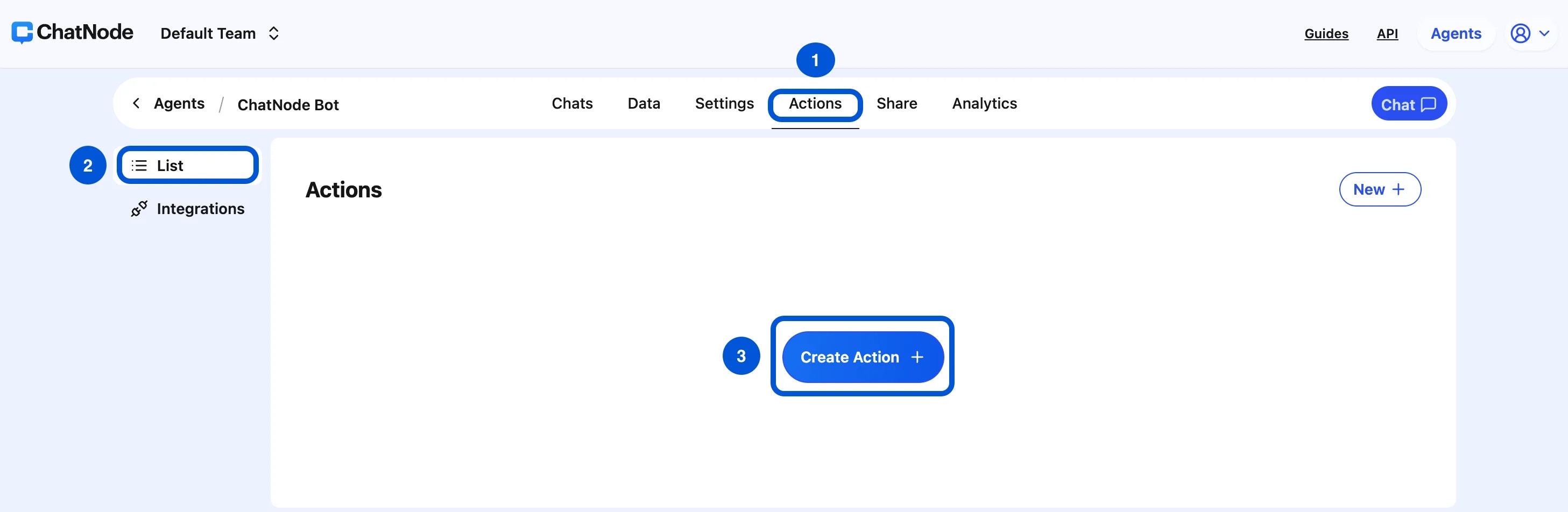
1. Go to the **Actions** tab.
2. Click **List** from the left-hand menu.
3. Select **Create Action**.
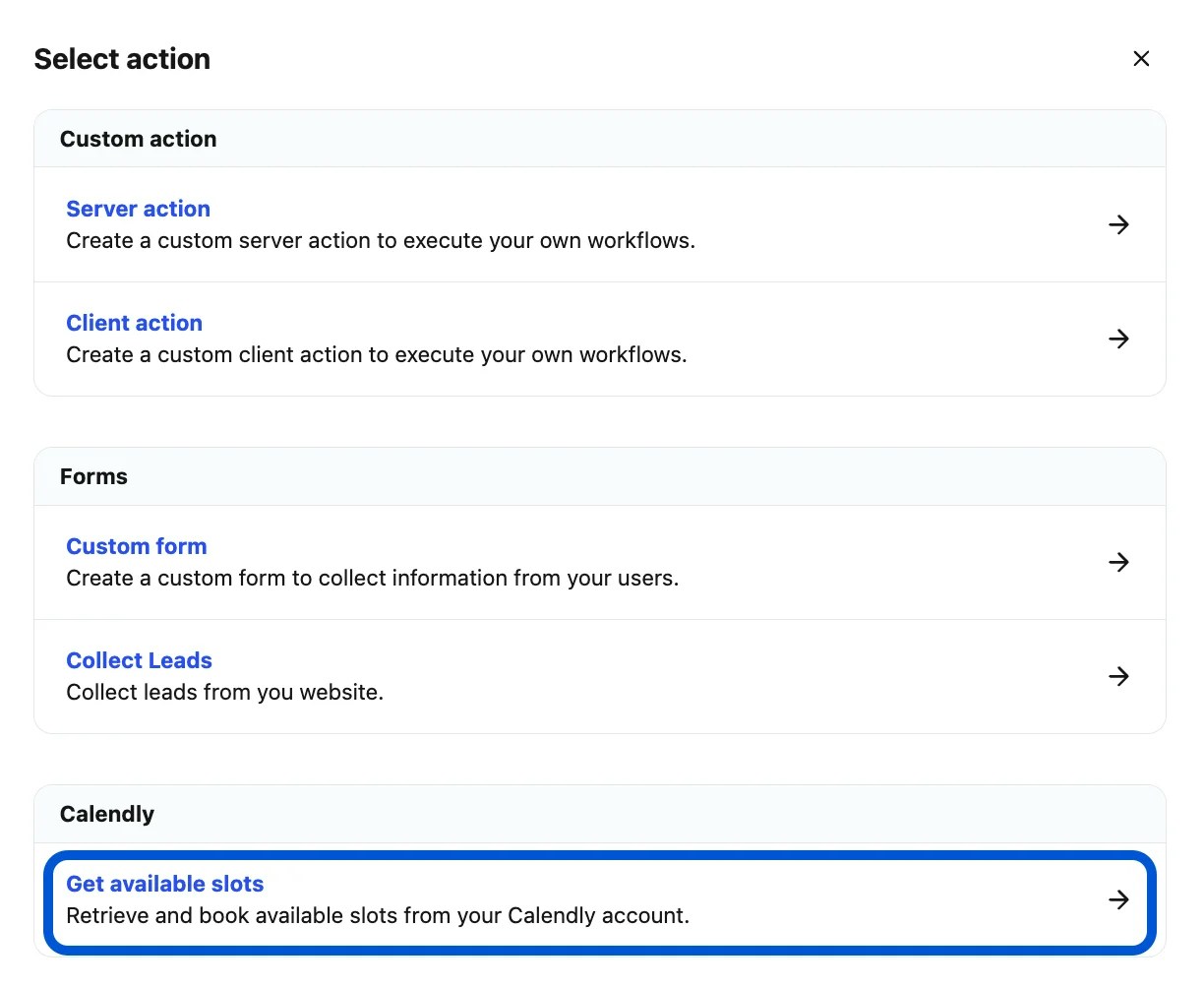
 4. Under **Calendly**, choose **Get Available Slots**.
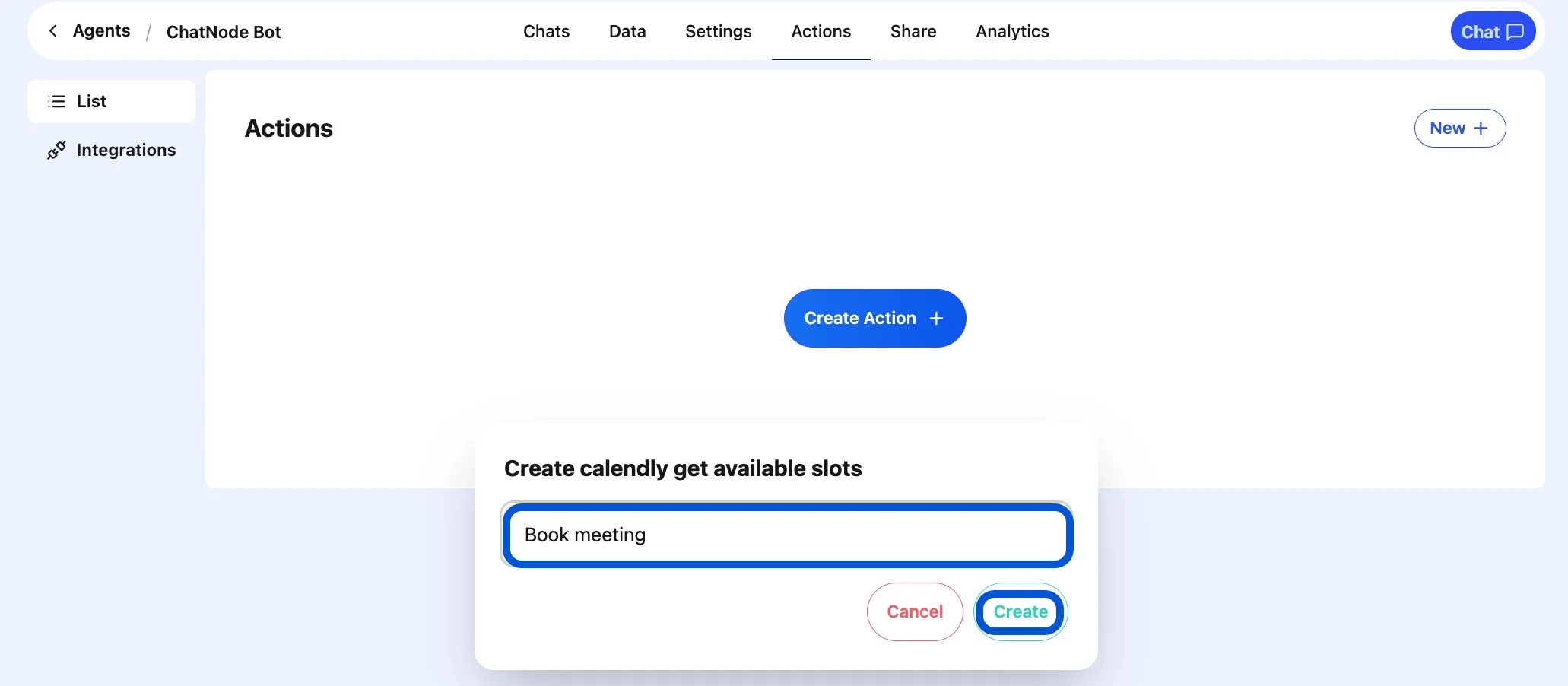
 5. Enter an **Action Title** in the pop-up window (e.g., Calendly Slots) and click **Create**.
 ### Step 2: Basic Settings
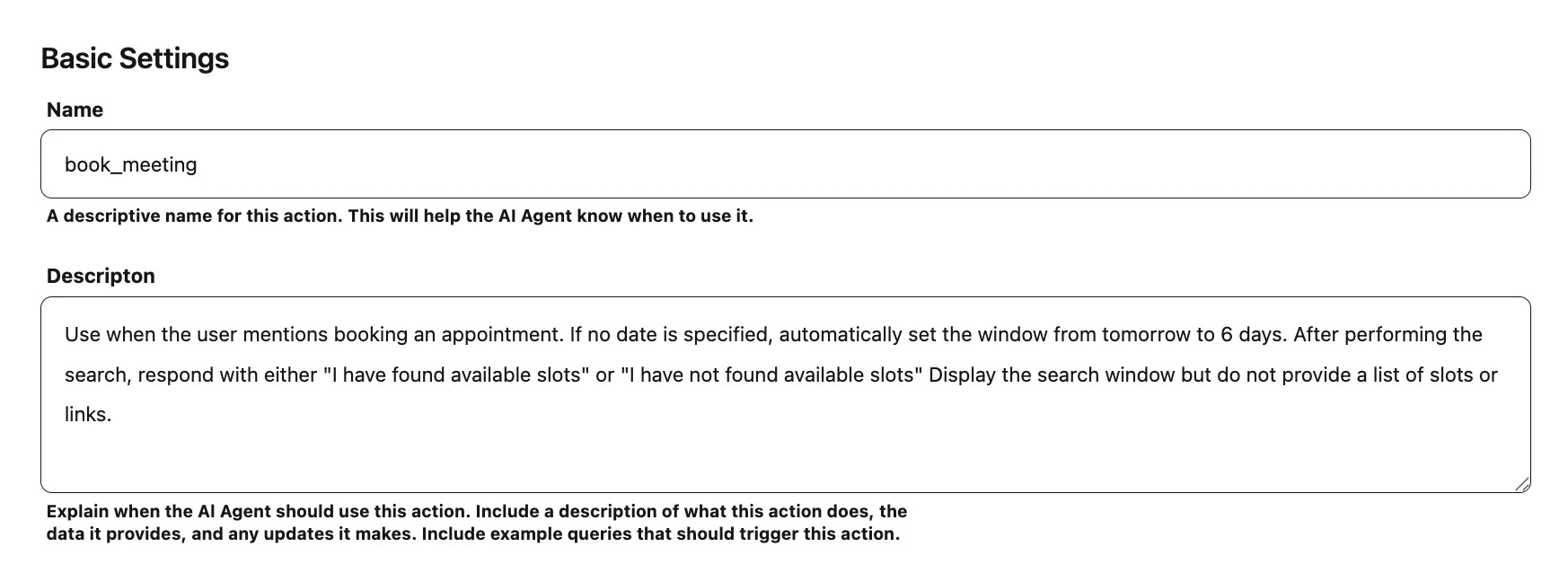
* **Name** → Provide a descriptive name.
* Example: book\_meeting
* **Description** → Explain how the action should work.
* Example:
If a date is provided, check slots within that window and display to the user. Respond with either “I have found available slots” or “I have not found available slots.” Display the search window but do not list slot links.
This helps define when and how the AI Agent should use this action.
### Step 2: Basic Settings
* **Name** → Provide a descriptive name.
* Example: book\_meeting
* **Description** → Explain how the action should work.
* Example:
If a date is provided, check slots within that window and display to the user. Respond with either “I have found available slots” or “I have not found available slots.” Display the search window but do not list slot links.
This helps define when and how the AI Agent should use this action.
 ### Step 3: Event Selection
* Under **Event**, choose the **Calendly event type** you want to connect with (e.g., **30-minute meeting, 1-hour consultation**).
* This ensures the action retrieves slots specifically tied to that Calendly event.
### Step 3: Event Selection
* Under **Event**, choose the **Calendly event type** you want to connect with (e.g., **30-minute meeting, 1-hour consultation**).
* This ensures the action retrieves slots specifically tied to that Calendly event.
 ### Step 4: Enable the Action
At the top of the configuration page, toggle from **Disable → Enable** to activate the action.
### Step 4: Enable the Action
At the top of the configuration page, toggle from **Disable → Enable** to activate the action.
 ## Example Workflow
1. User: **“Book a meeting next week.”**
2. AI Agent triggers **Get Available Slots**.
3. Calendly returns available times for the selected event.
4. AI Agent responds: **“I found available slots for next week.”**
5. The user selects a time, completing the booking flow.
With the **Calendly Get Available Slots** action, your AI Agent can seamlessly handle scheduling, making it easier for users to find and book meetings without leaving the chat.
## Example Workflow
1. User: **“Book a meeting next week.”**
2. AI Agent triggers **Get Available Slots**.
3. Calendly returns available times for the selected event.
4. AI Agent responds: **“I found available slots for next week.”**
5. The user selects a time, completing the booking flow.
With the **Calendly Get Available Slots** action, your AI Agent can seamlessly handle scheduling, making it easier for users to find and book meetings without leaving the chat.