> ## Documentation Index
> Fetch the complete documentation index at: https://docs.chatnode.ai/docs/llms.txt
> Use this file to discover all available pages before exploring further.
# WordPress
To get started, simply install our official ChatNode WordPress plugin. This plugin lets you quickly add a popup chat to your website without any coding.
## Step 1: Set Up ChatNode on Your WordPress Site
**1. Log into your WordPress Admin**
Go to your WordPress dashboard by visiting: yourdomainname.com/wp-admin
You can also access it through your web hosting control panel.
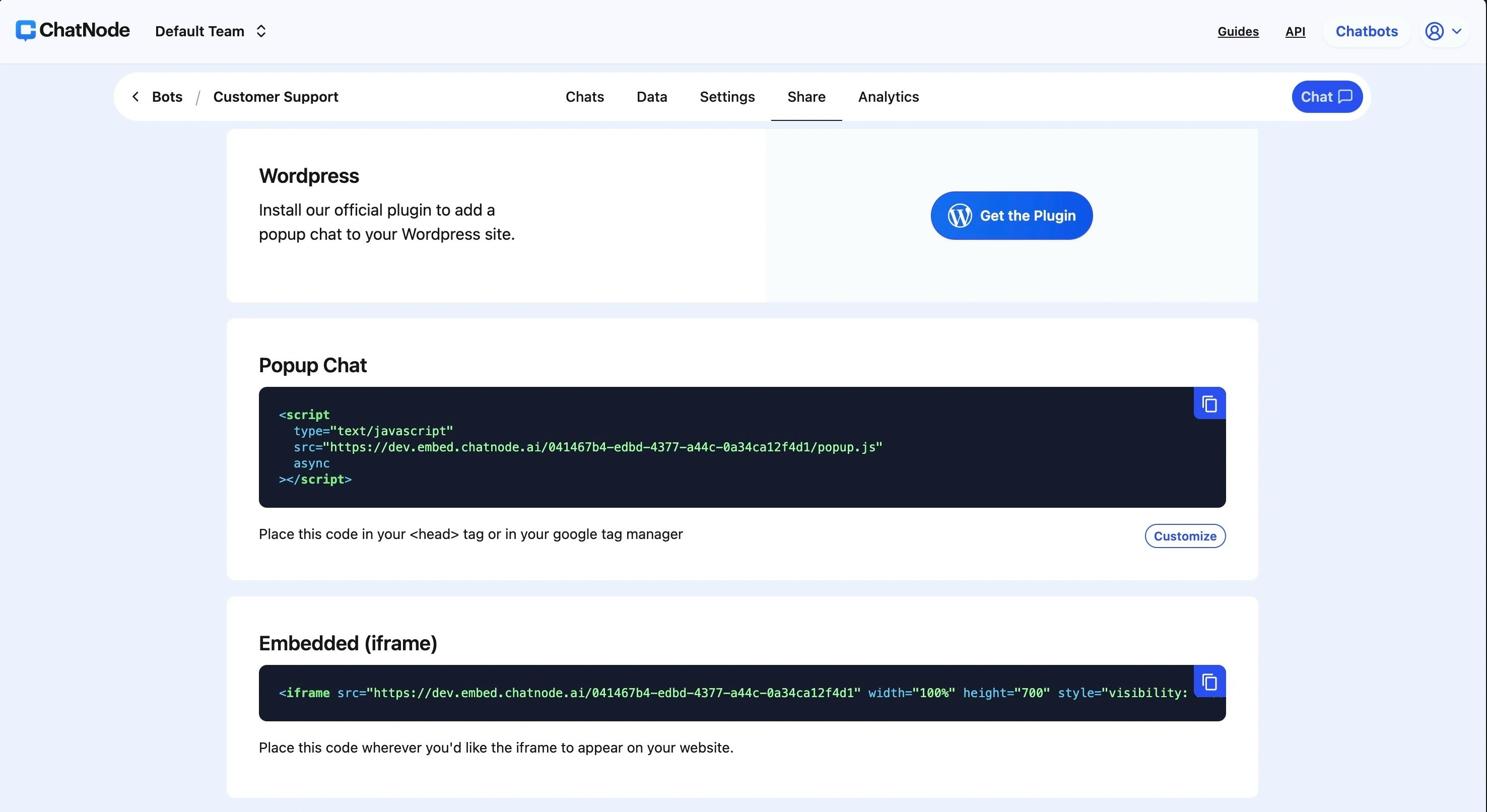 **2. Install and Activate the ChatNode Plugin**
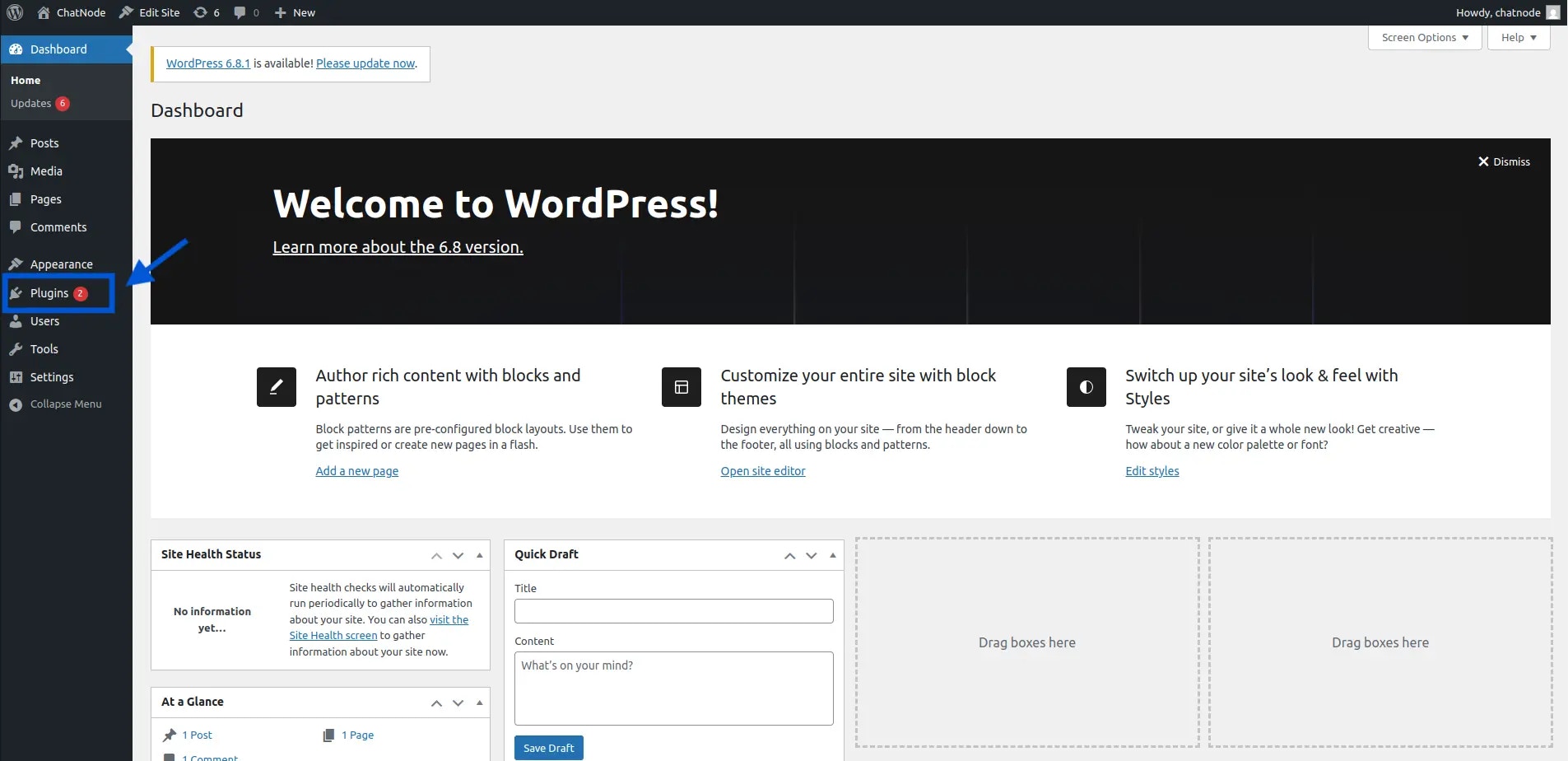
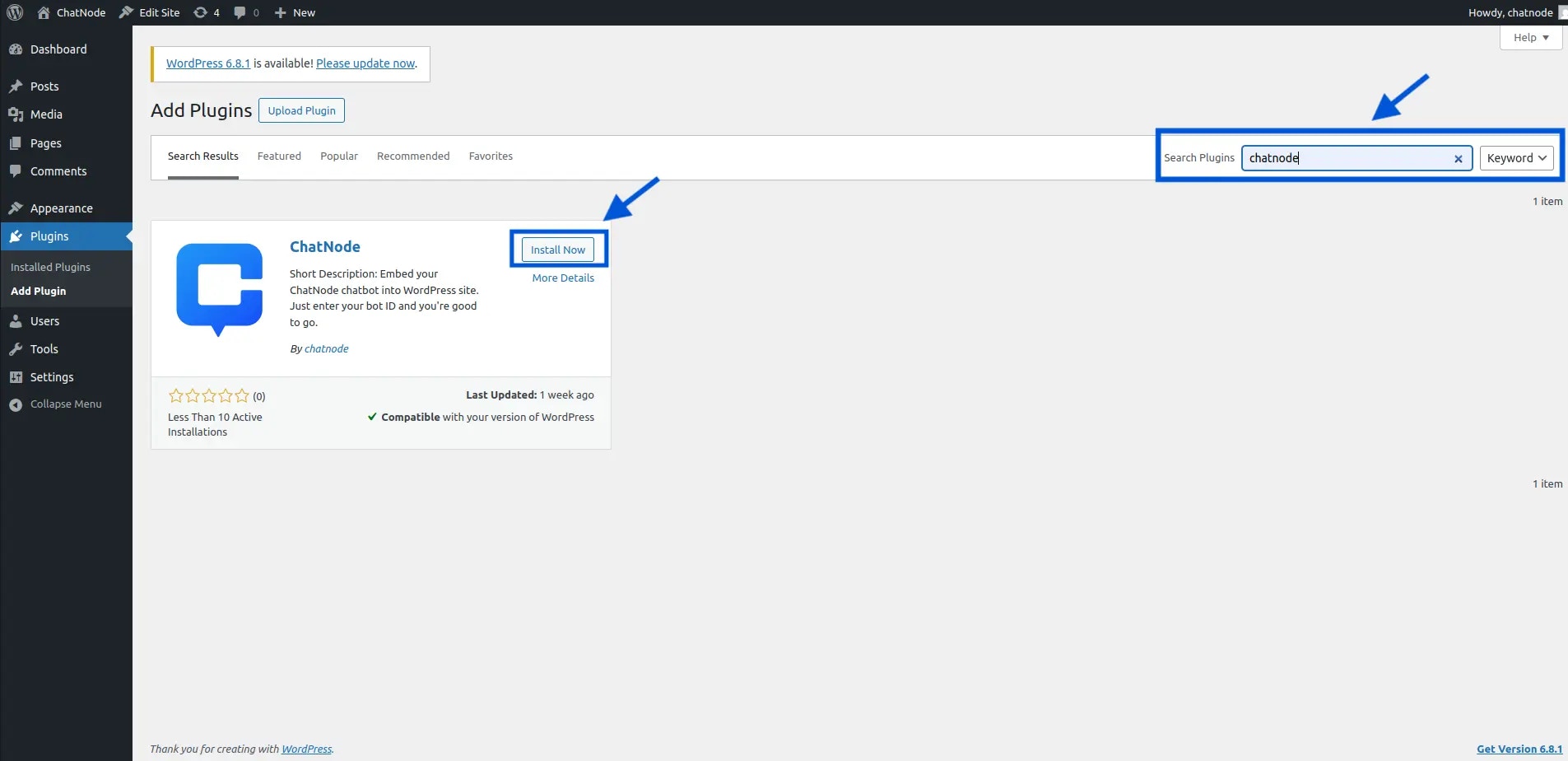
* In your WordPress dashboard, go to the **Plugins** section from the left sidebar.
**2. Install and Activate the ChatNode Plugin**
* In your WordPress dashboard, go to the **Plugins** section from the left sidebar.
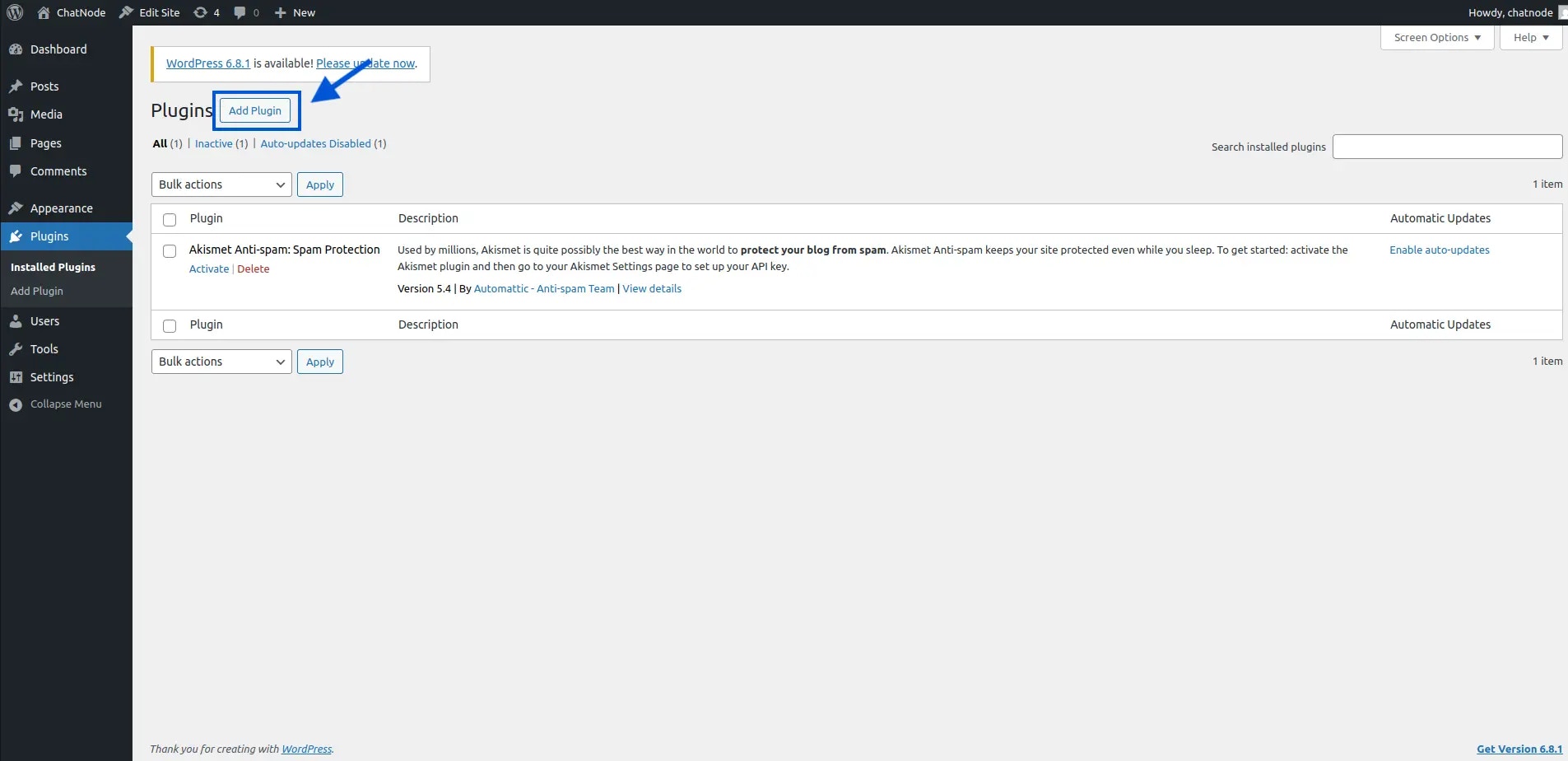
 * Click **Add New** at the top of the page.
 * Use the search bar to look for **“ChatNode”.**
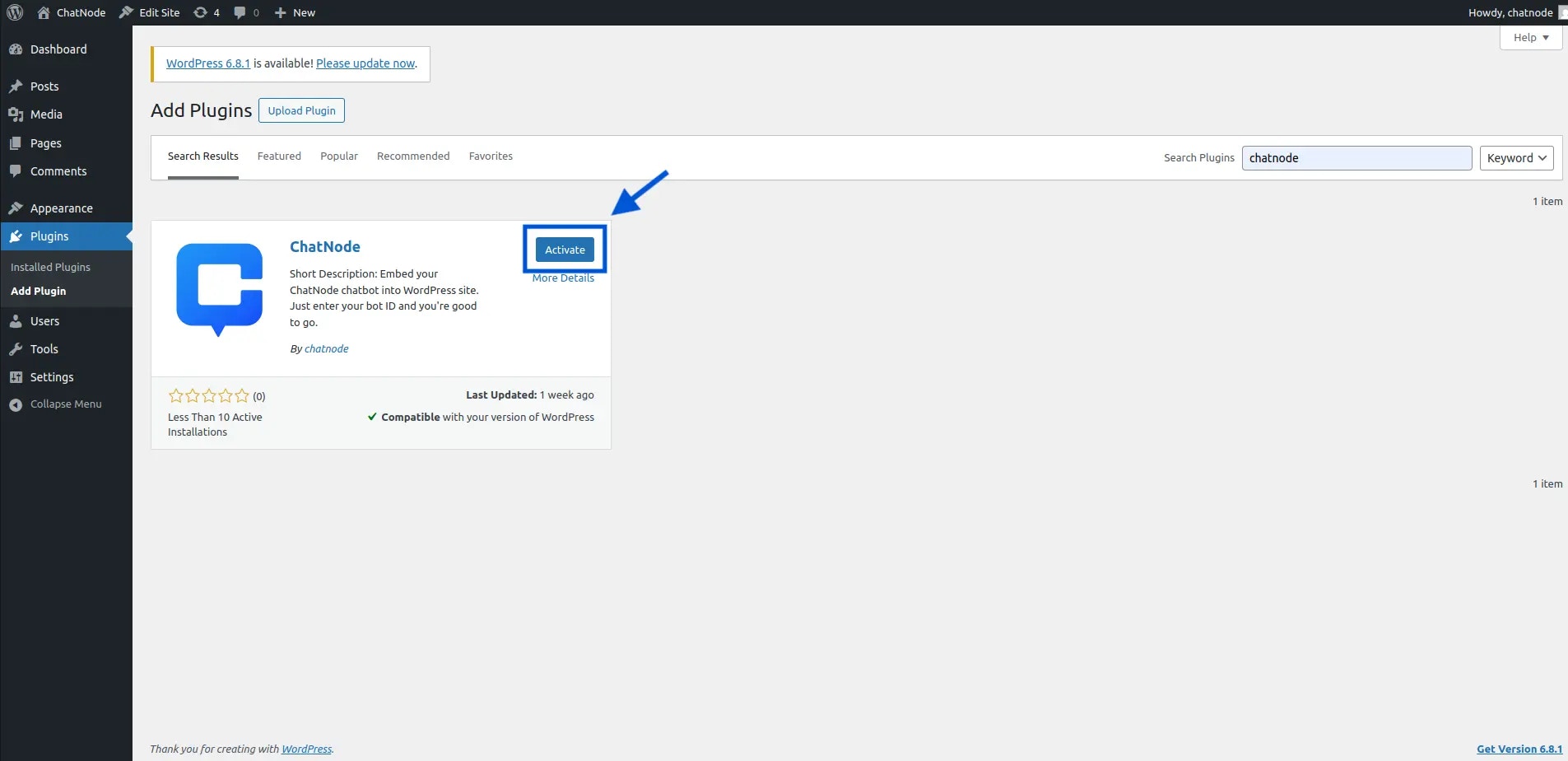 * Once the ChatNode plugin appears, click **Install Now,** then hit **Activate**.
 **3. Open ChatNode Settings**
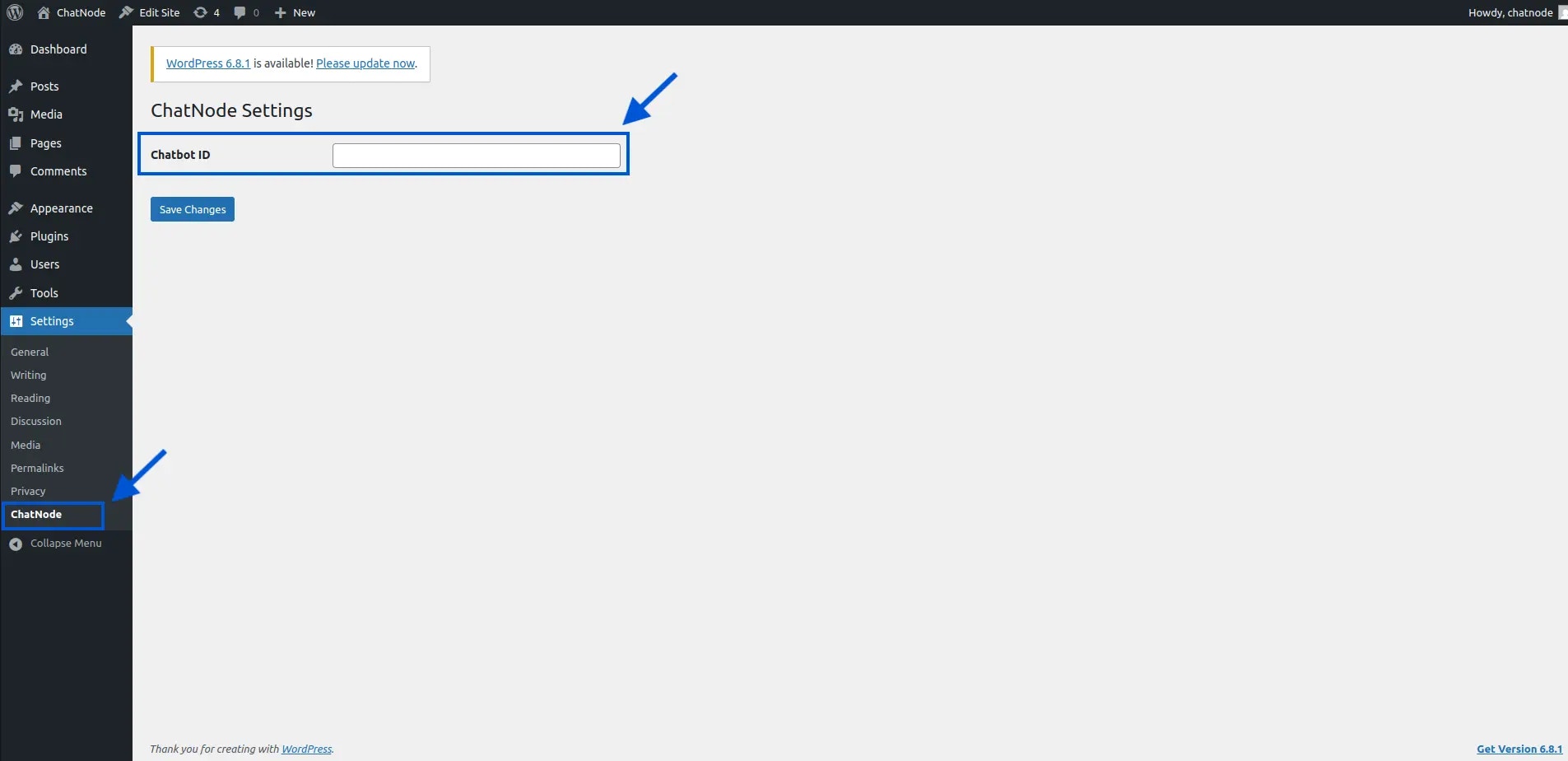
* In the left sidebar, click on **Settings**.
* Find and click on **ChatNode** from the list.
**3. Open ChatNode Settings**
* In the left sidebar, click on **Settings**.
* Find and click on **ChatNode** from the list.
 \*\*4. Get and Enter Your botID""
* Log into your ChatNode account and go to your Dashboard.
* Choose the agent you’d like to use.
* Click into it, then go to the **Settings** tab.
* You’ll find your **botID** — copy it.
\*\*4. Get and Enter Your botID""
* Log into your ChatNode account and go to your Dashboard.
* Choose the agent you’d like to use.
* Click into it, then go to the **Settings** tab.
* You’ll find your **botID** — copy it.
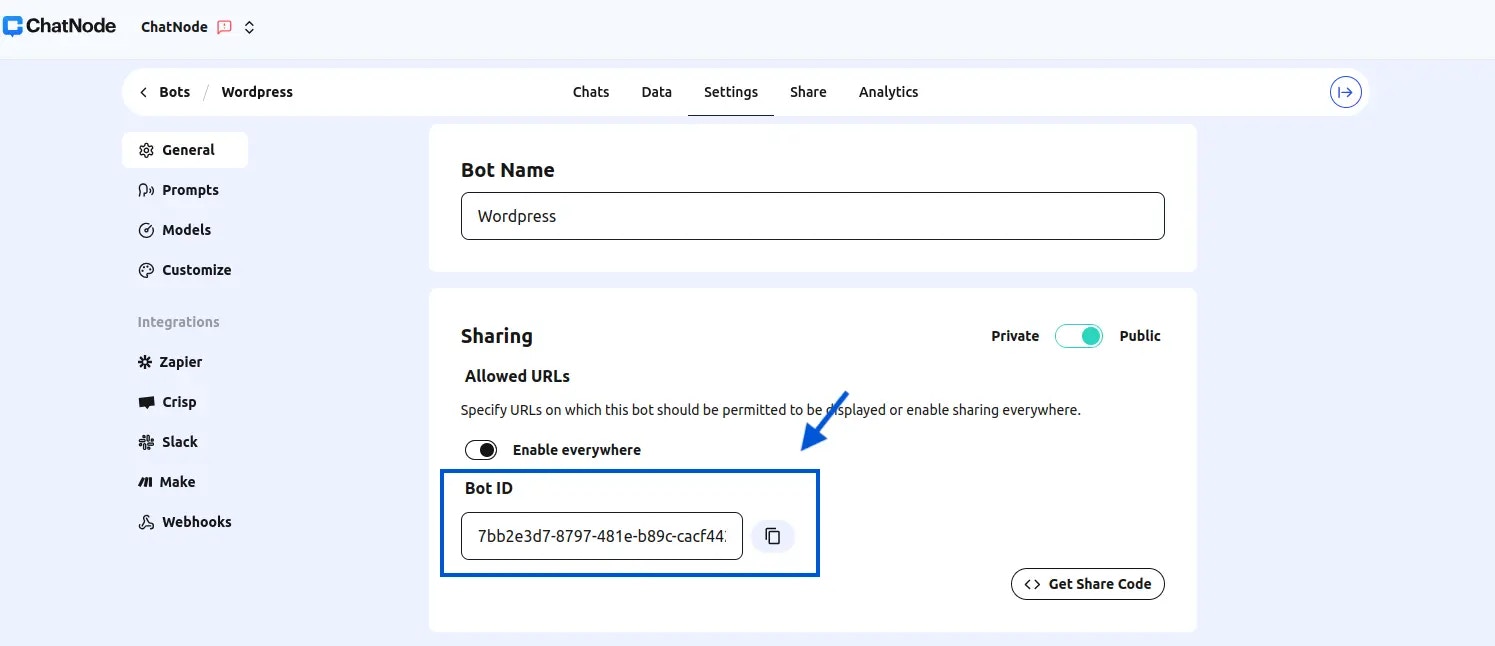 * Paste this ID into the botID field in your WordPress ChatNode settings.
**5. Save and You’re Done!**
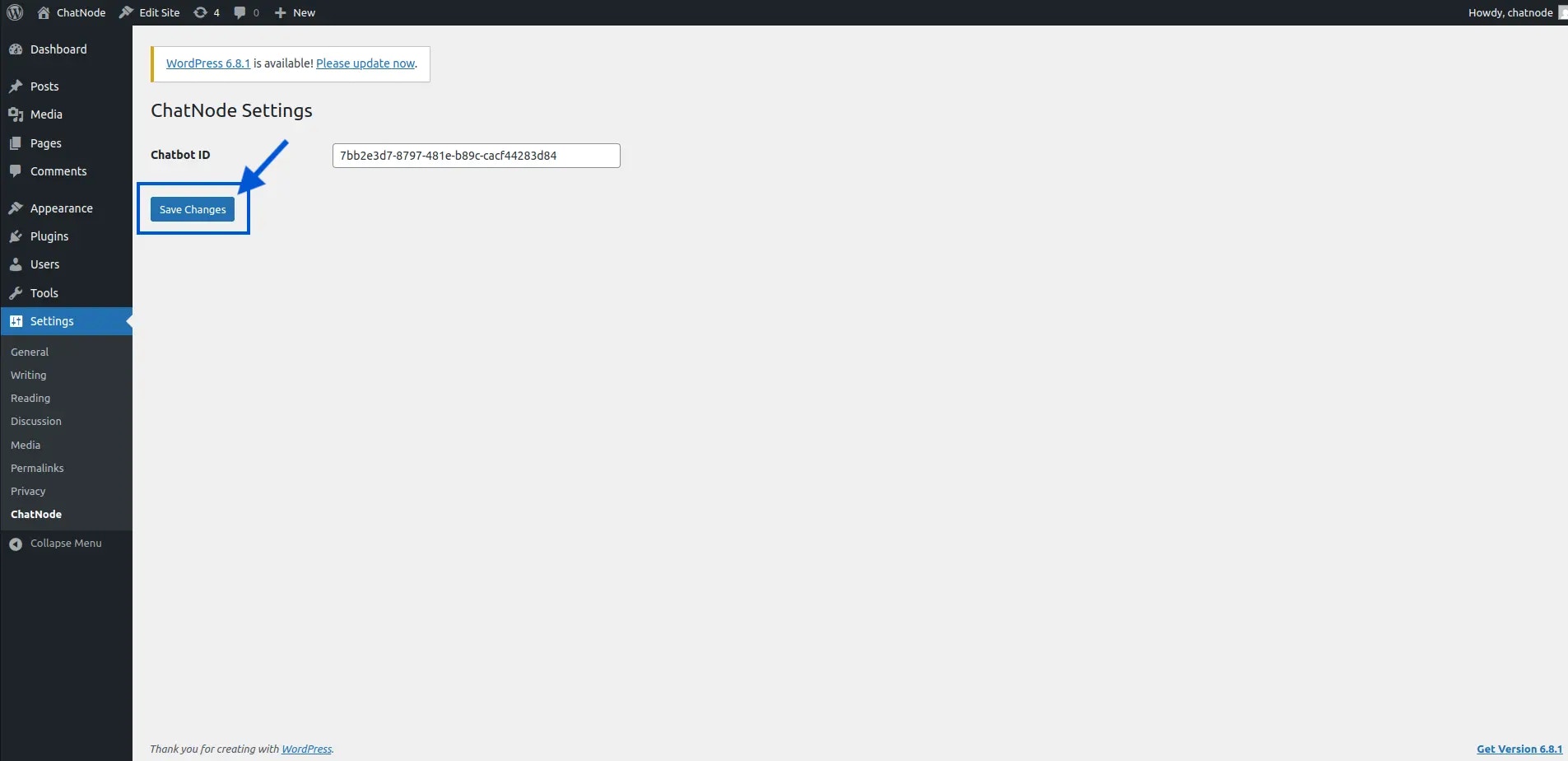
* Click **Save Changes**.
* Paste this ID into the botID field in your WordPress ChatNode settings.
**5. Save and You’re Done!**
* Click **Save Changes**.
 * Your ChatNode agent should now be live on your WordPress website!