> ## Documentation Index
> Fetch the complete documentation index at: https://docs.chatnode.ai/docs/llms.txt
> Use this file to discover all available pages before exploring further.
# Notion
> Guide to Integrating Notion with ChatNode
Integrating Notion with ChatNode enables seamless synchronization of your Notion pages, enhancing your agent's knowledge base with structured and updated data. Follow this step-by-step guide to set up and manage the Notion integration effectively.
#### Steps to Integrate Notion with ChatNode:
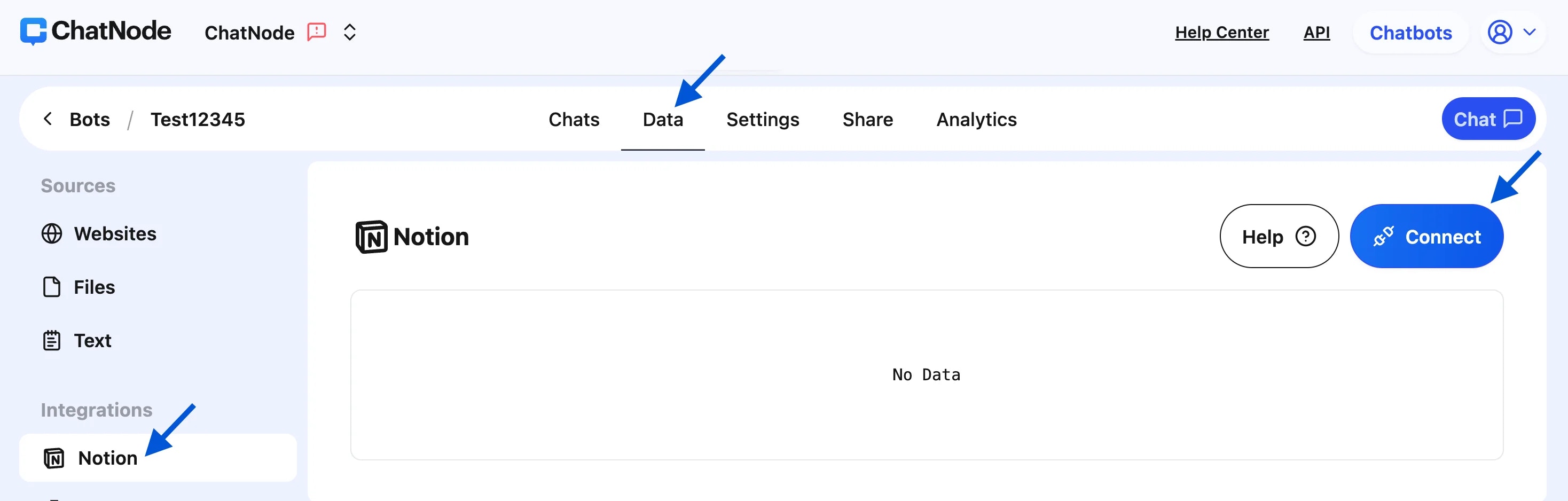
1. **Navigate to the Data Section**:
* Open your ChatNode dashboard and go to the **Data** tab.
* Under the **Integrations** section on the left menu, click on **Notion**.
2. **Connect Your Notion Workspace**:
* Click the **Connect** button on the Notion integration panel.
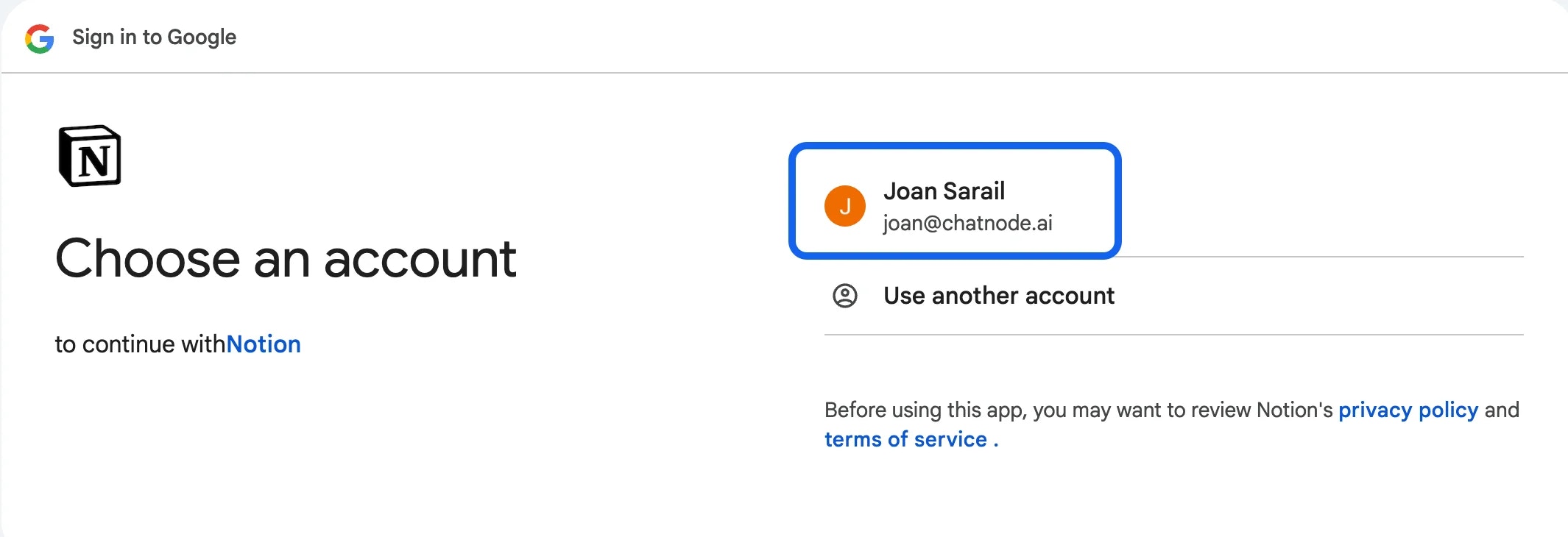
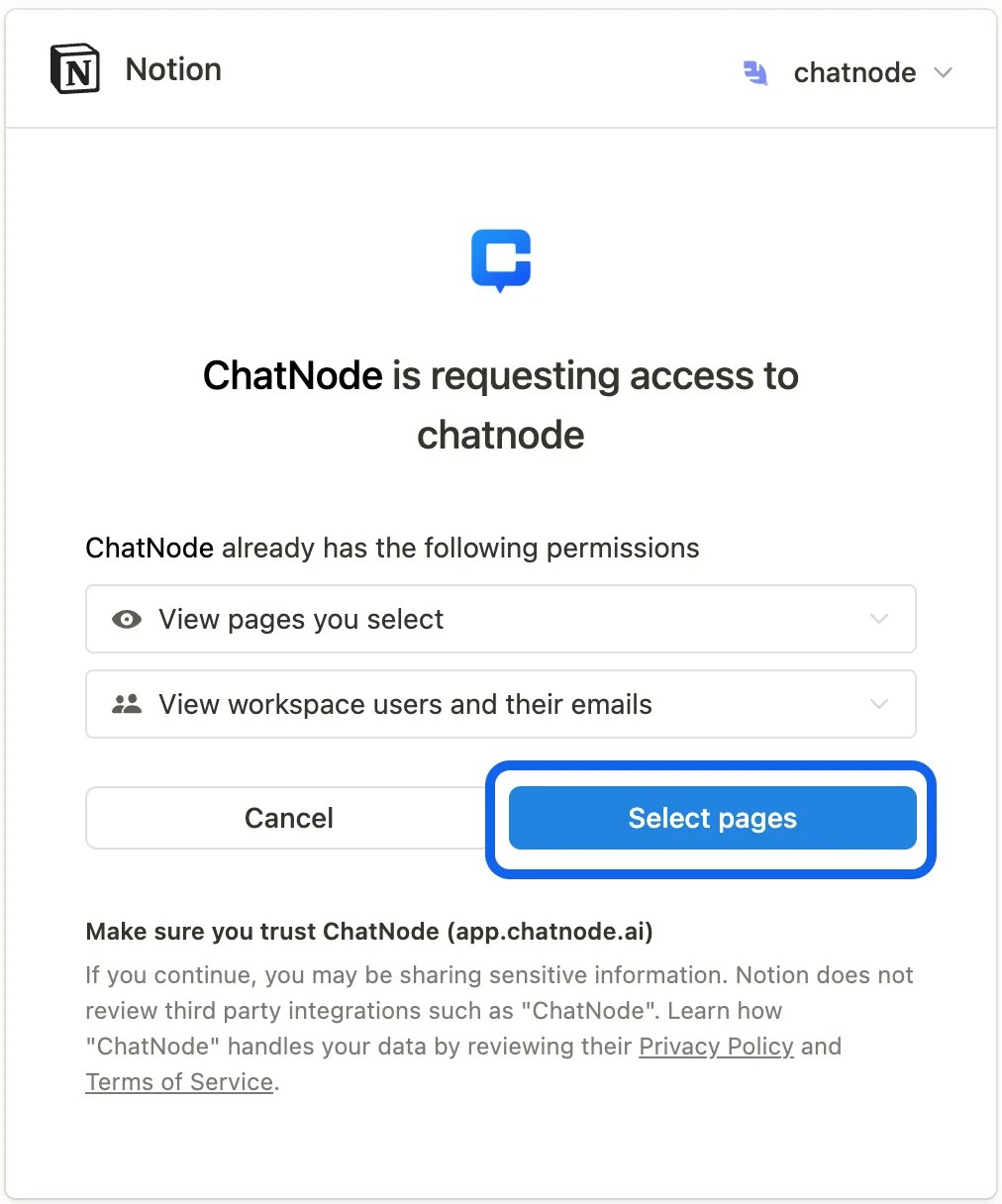
* A popup will appear, requesting permission for ChatNode to access your Notion workspace. Select the pages you want ChatNode to use.
 3. **Select Pages**:
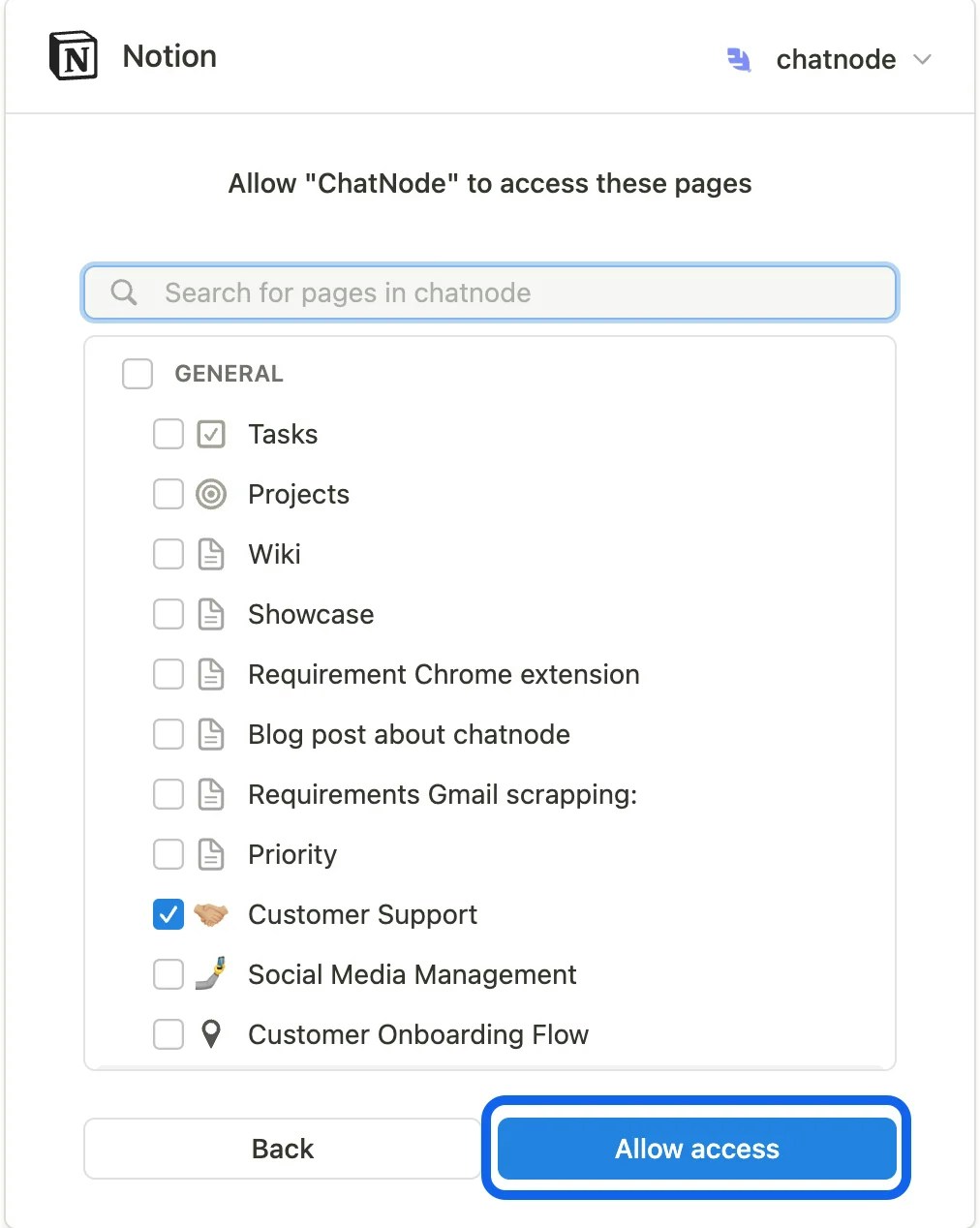
* In the Notion permissions screen, browse through your workspace and tick the specific pages or databases you want to integrate.
* After selecting the pages, click **Select Pages** to confirm your choices.
* Once the selection is complete, click **Allow Access** to grant permissions.
3. **Select Pages**:
* In the Notion permissions screen, browse through your workspace and tick the specific pages or databases you want to integrate.
* After selecting the pages, click **Select Pages** to confirm your choices.
* Once the selection is complete, click **Allow Access** to grant permissions.
 4. **Training Data**:
* After granting access, your selected pages will appear in the Notion integration section on ChatNode.
* Each page or article is listed with its training status and the character count of the content.
* To train your agent on the selected data, ensure that the articles are listed and properly synced.
#### Managing Your Integrated Data:
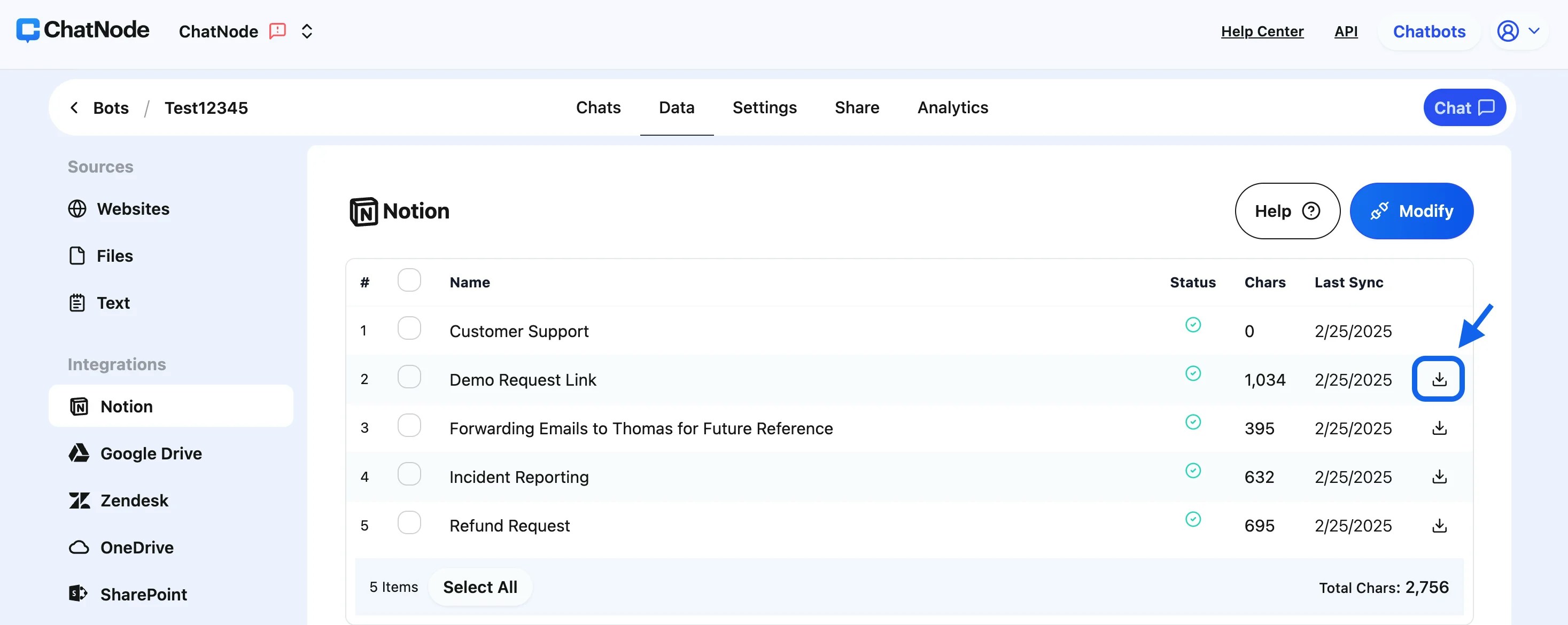
1. **Download Articles**:
* Beside each integrated article, you'll find an option to download its content as a `.txt` file. This is useful for offline reviews or backups.
4. **Training Data**:
* After granting access, your selected pages will appear in the Notion integration section on ChatNode.
* Each page or article is listed with its training status and the character count of the content.
* To train your agent on the selected data, ensure that the articles are listed and properly synced.
#### Managing Your Integrated Data:
1. **Download Articles**:
* Beside each integrated article, you'll find an option to download its content as a `.txt` file. This is useful for offline reviews or backups.
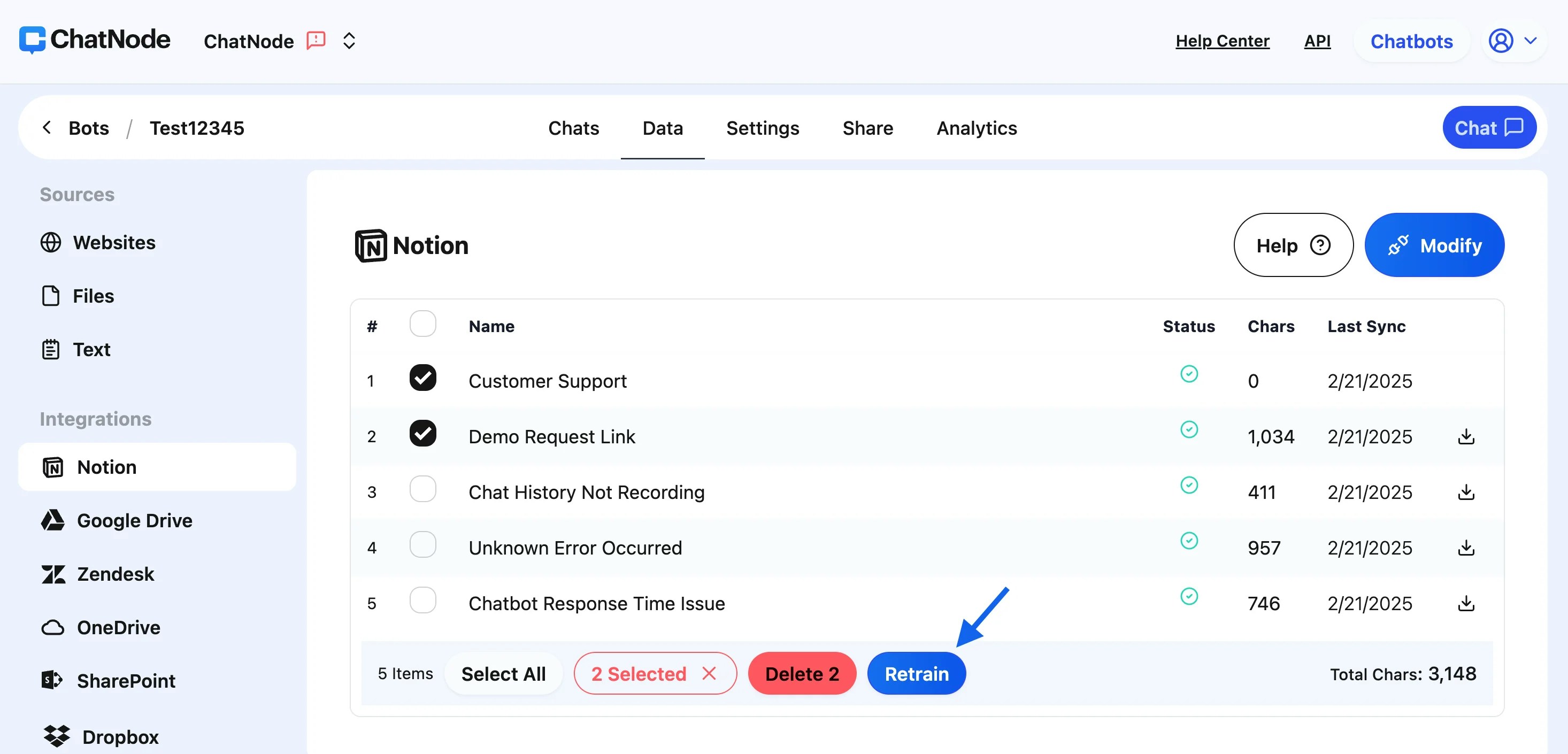
 2. **Retrain Specific Pages**:
* If you've added new information or updated existing content in your Notion pages, tick the box beside the relevant articles and click **Retrain**. This ensures your agent reflects the latest updates.
2. **Retrain Specific Pages**:
* If you've added new information or updated existing content in your Notion pages, tick the box beside the relevant articles and click **Retrain**. This ensures your agent reflects the latest updates.
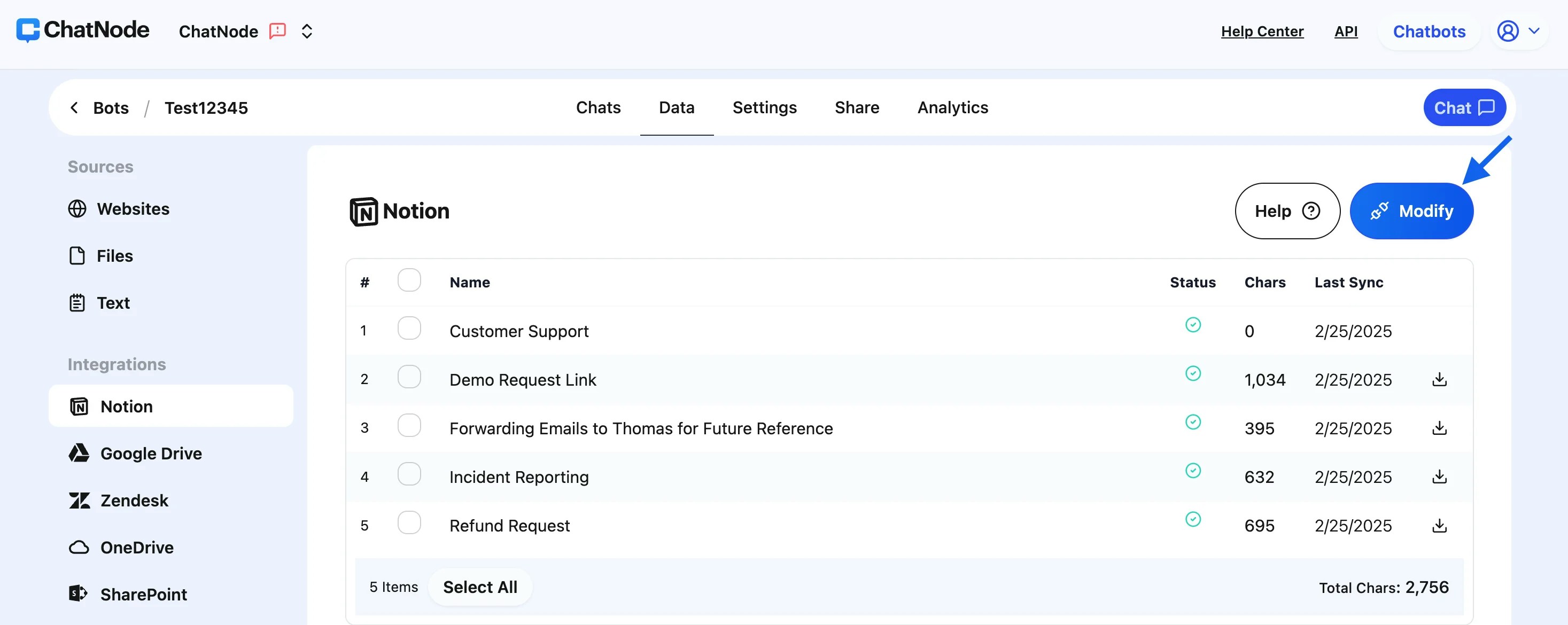
 3. **Modify Integration**:
* To add new pages or remove existing ones, use the **Modify** button. This will take you back to the Notion permissions page, where you can adjust the page selection.
3. **Modify Integration**:
* To add new pages or remove existing ones, use the **Modify** button. This will take you back to the Notion permissions page, where you can adjust the page selection.
 4. **Track Training Progress**:
* Monitor the training status for each article. You may see statuses like **Training**, **Waiting**, or **Completed**. Wait for the training process to finish before testing the agent with the new data.
#### Benefits of Notion Integration:
* **Dynamic Updates**: Keep your agent knowledge base updated in real time by syncing changes from Notion.
* **Streamlined Data Management**: Easily manage which Notion pages are integrated and retrain only the necessary parts.
* **Content Download**: Export Notion pages in `.txt` format for additional flexibility and use cases.
By integrating Notion with ChatNode, you ensure that your agent is equipped with the most relevant and accurate information. Use this guide to set up and maintain the integration effectively, allowing your agent to provide smarter and faster responses.
4. **Track Training Progress**:
* Monitor the training status for each article. You may see statuses like **Training**, **Waiting**, or **Completed**. Wait for the training process to finish before testing the agent with the new data.
#### Benefits of Notion Integration:
* **Dynamic Updates**: Keep your agent knowledge base updated in real time by syncing changes from Notion.
* **Streamlined Data Management**: Easily manage which Notion pages are integrated and retrain only the necessary parts.
* **Content Download**: Export Notion pages in `.txt` format for additional flexibility and use cases.
By integrating Notion with ChatNode, you ensure that your agent is equipped with the most relevant and accurate information. Use this guide to set up and maintain the integration effectively, allowing your agent to provide smarter and faster responses.