> ## Documentation Index
> Fetch the complete documentation index at: https://docs.chatnode.ai/docs/llms.txt
> Use this file to discover all available pages before exploring further.
# Google Drive
> Guide to Integrating Google Drive with ChatNode
The Google Drive integration in ChatNode allows you to leverage your files for agent training efficiently. Follow this guide to set up the integration and keep your agent data updated seamlessly.
## Steps to Integrate Google Drive with ChatNode:
1. **Access the Integration**:
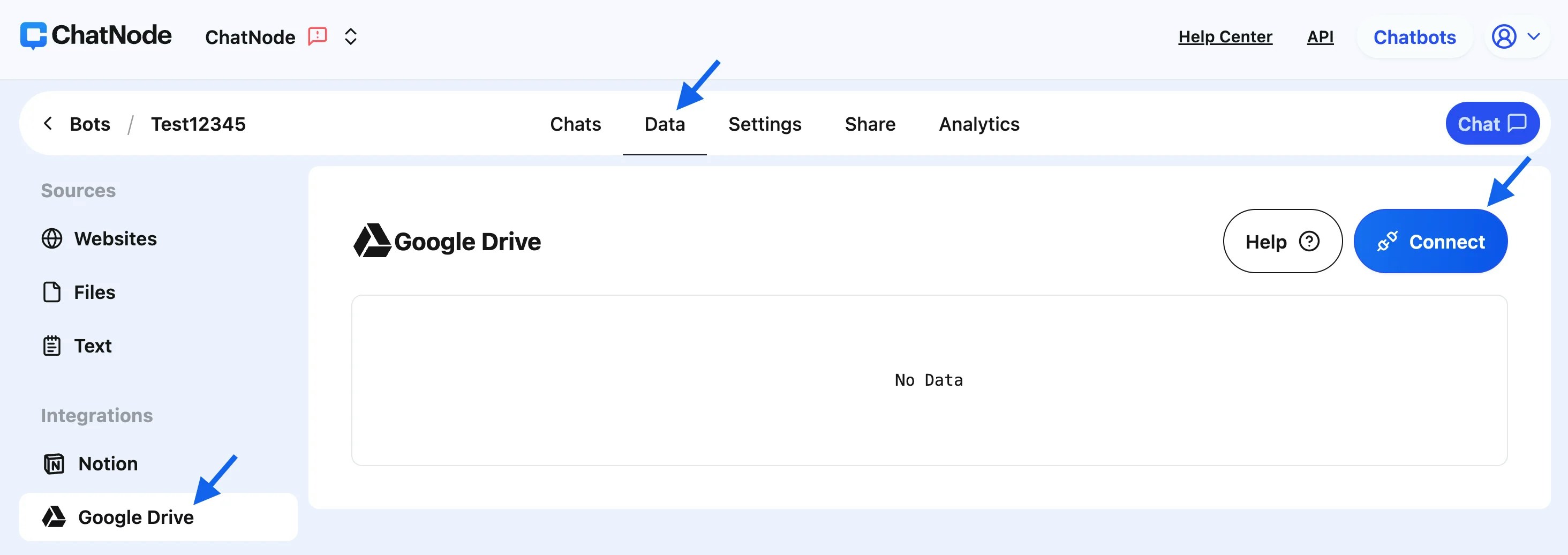
* Navigate to the **Data** section in your ChatNode dashboard.
* Under **Integrations**, select **Google Drive**.
 2. **Connect Your Google Drive Account**:
* Click on the **Connect** button on the Google Drive panel.
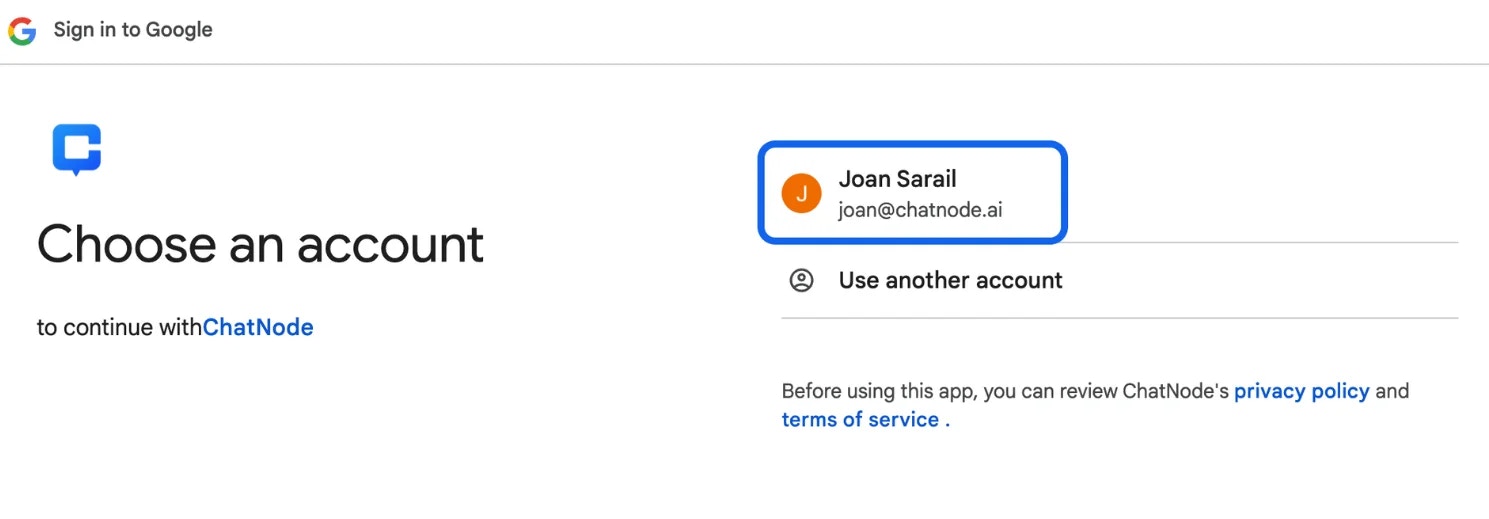
* A Google authorization window will appear. Select the Google account you want to connect to ChatNode.
* Click **Continue** to proceed.
2. **Connect Your Google Drive Account**:
* Click on the **Connect** button on the Google Drive panel.
* A Google authorization window will appear. Select the Google account you want to connect to ChatNode.
* Click **Continue** to proceed.
 3. **Grant Permissions**:
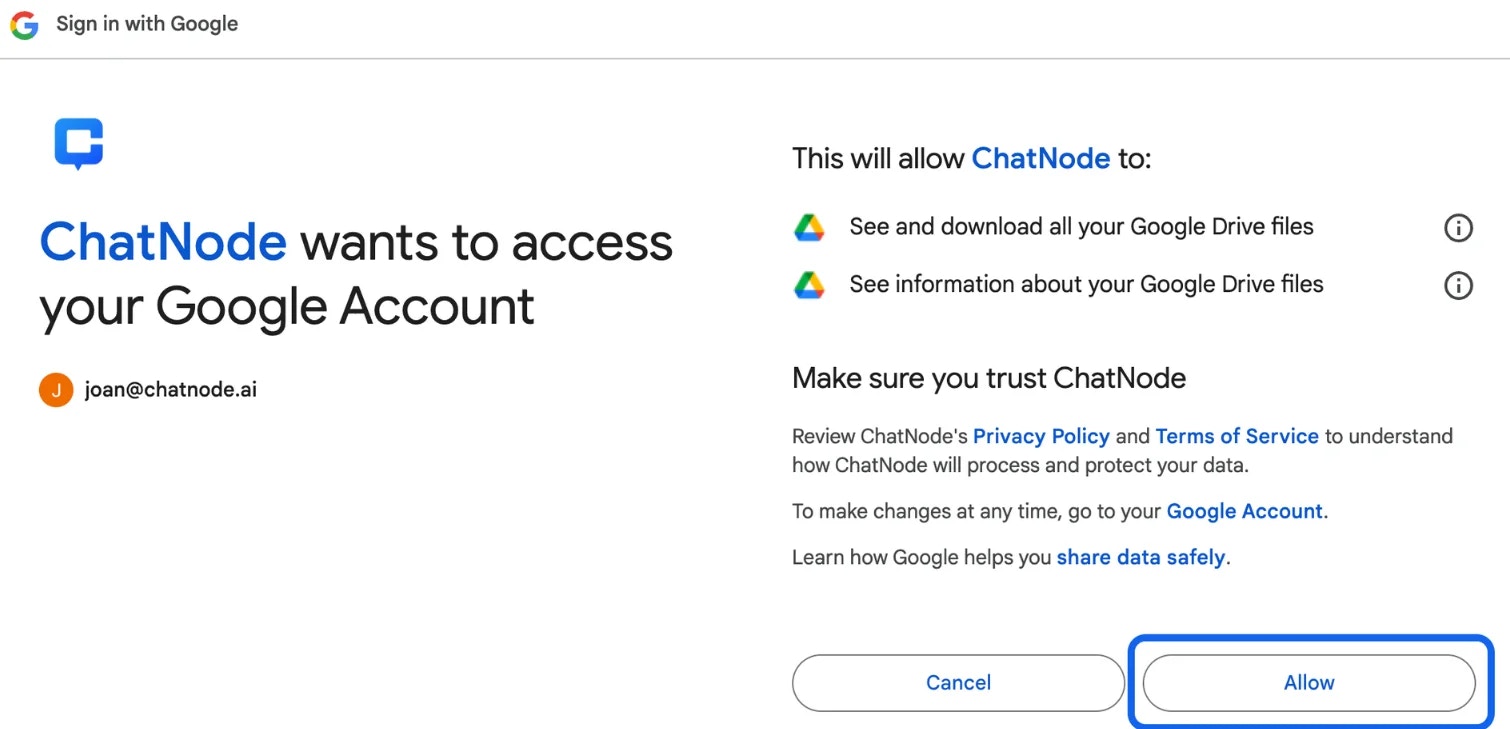
* ChatNode will request access to your Google Drive. The permissions include viewing and downloading your files.
* Review the permissions and click **Allow** to enable the integration.
3. **Grant Permissions**:
* ChatNode will request access to your Google Drive. The permissions include viewing and downloading your files.
* Review the permissions and click **Allow** to enable the integration.
 4. **Confirmation**:
* After successfully granting access, a pop-up message will confirm that your Google Drive has been connected.
5. **Select Files for Training**:
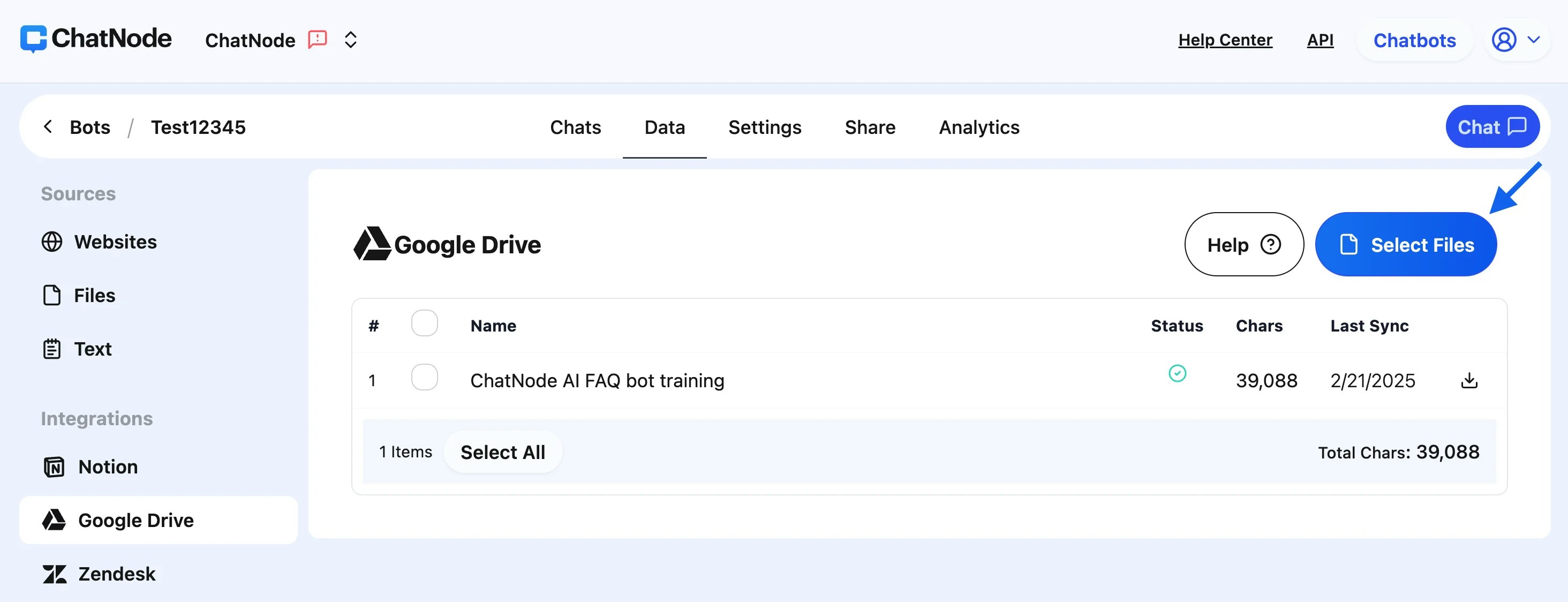
* Click the **Select Files** button to browse your Google Drive.
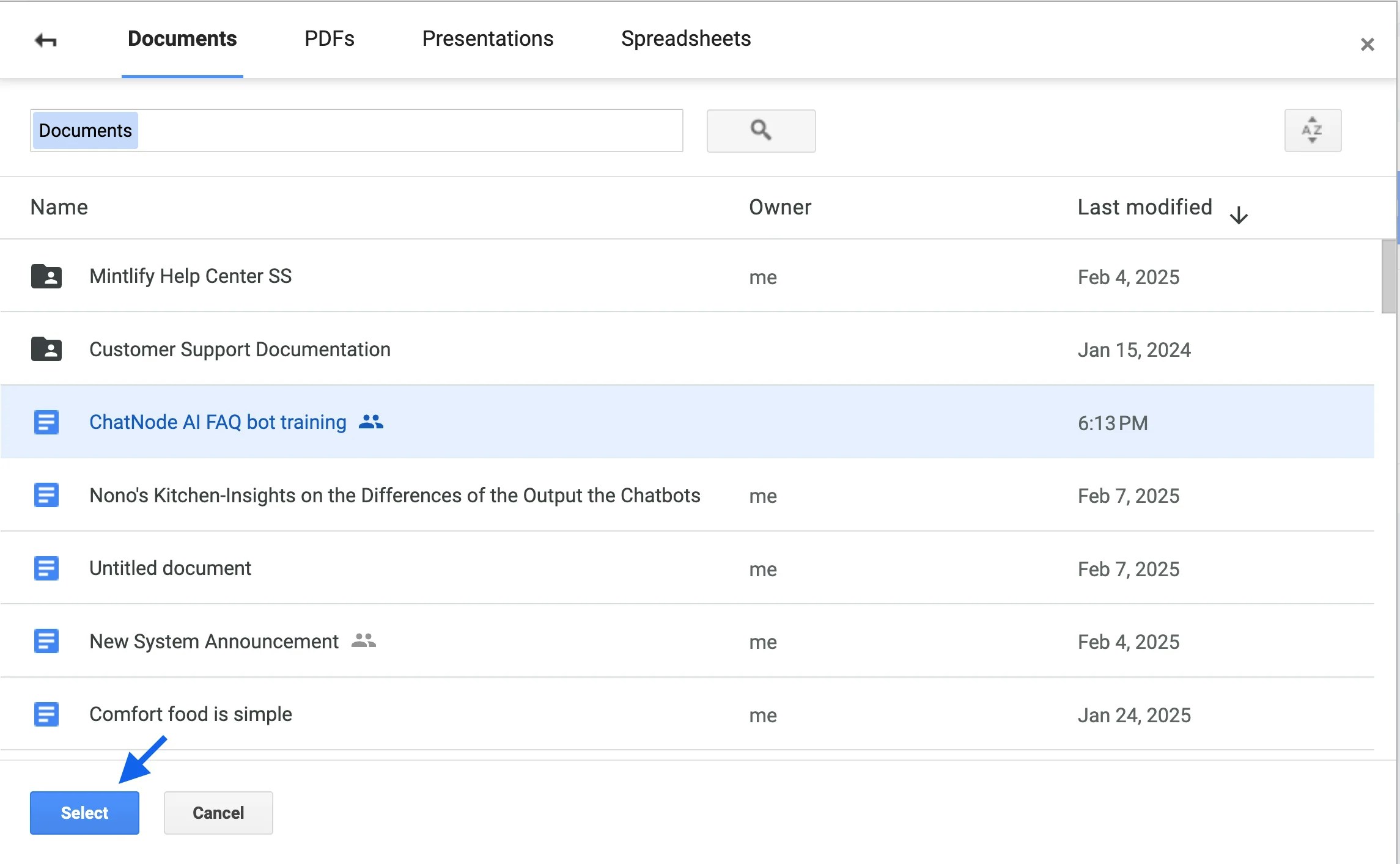
* Use the search bar or navigate through your folders to find the files you want to integrate.
* Select the files and click **Select** to add them to your ChatNode agent.
6. **Automatic Training**:
* Once files are selected, they will automatically be trained for agent use. You can monitor the training progress in the Google Drive panel.
4. **Confirmation**:
* After successfully granting access, a pop-up message will confirm that your Google Drive has been connected.
5. **Select Files for Training**:
* Click the **Select Files** button to browse your Google Drive.
* Use the search bar or navigate through your folders to find the files you want to integrate.
* Select the files and click **Select** to add them to your ChatNode agent.
6. **Automatic Training**:
* Once files are selected, they will automatically be trained for agent use. You can monitor the training progress in the Google Drive panel.
 #### Managing Your Integrated Files:
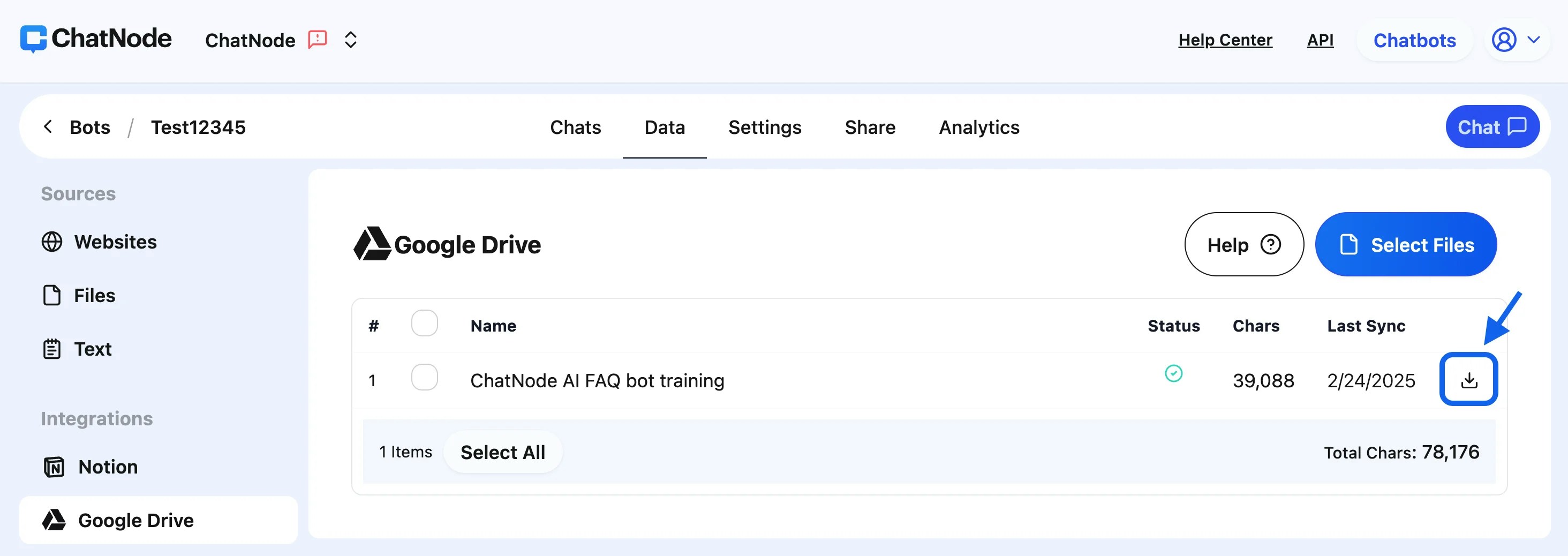
1. **Download Files**:
* Each integrated file has a download option, allowing you to export the file content in `.txt` format for offline use or backups.
#### Managing Your Integrated Files:
1. **Download Files**:
* Each integrated file has a download option, allowing you to export the file content in `.txt` format for offline use or backups.
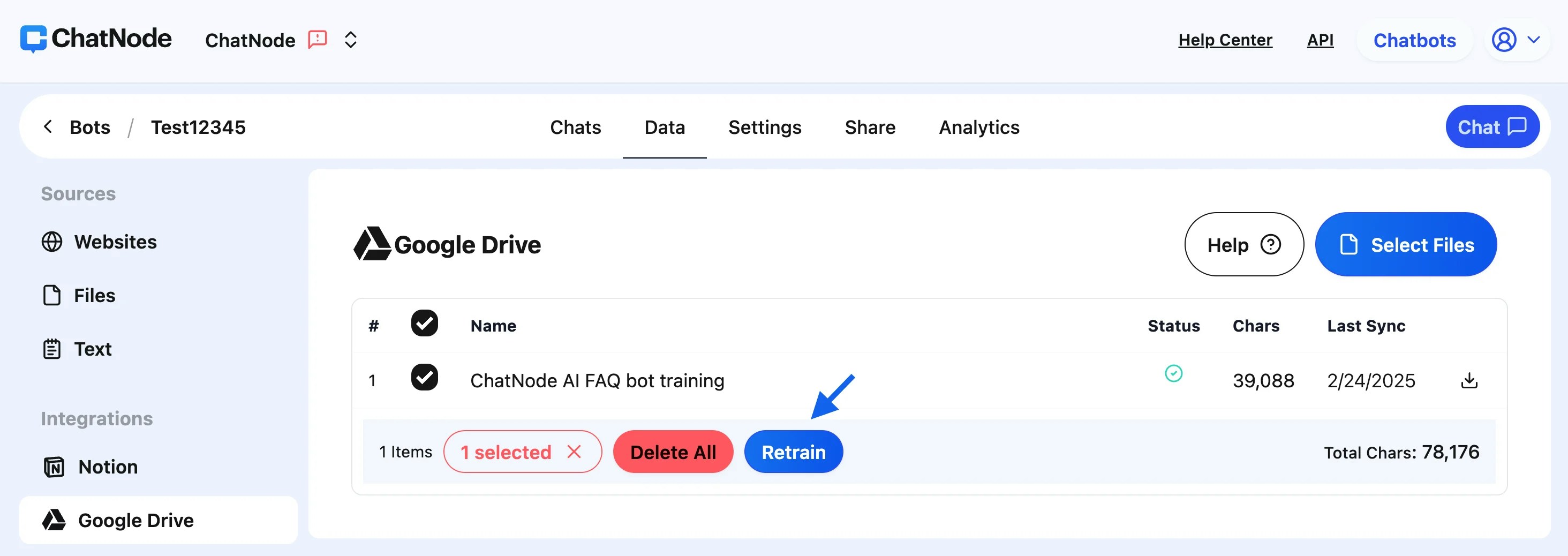
 2. **Retrain with New Information**:
* If you’ve updated a file in Google Drive, tick the checkbox next to the file in the ChatNode dashboard and click **Retrain**. This ensures the agent uses the most up-to-date data.
2. **Retrain with New Information**:
* If you’ve updated a file in Google Drive, tick the checkbox next to the file in the ChatNode dashboard and click **Retrain**. This ensures the agent uses the most up-to-date data.
 3. **Manage Connected Files**:
* If you need to add new files, repeat the **Select Files** process.
* For existing files, check the **Last Sync** date to ensure your agent is using the latest version.
3. **Manage Connected Files**:
* If you need to add new files, repeat the **Select Files** process.
* For existing files, check the **Last Sync** date to ensure your agent is using the latest version.
 #### Benefits of Google Drive Integration:
* **Ease of Use**: Directly pull data from Google Drive without manual uploads.
* **Dynamic Updates**: Retrain your agent with new or updated data instantly.
* **Content Backup**: Download files in `.txt` format for review or archiving.
By integrating Google Drive with ChatNode, you can manage your agent data effortlessly, ensuring it stays accurate and helpful. Use this guide to optimize your workflow and maximize the capabilities of your agent.
## How to Disconnect ChatNode from Your Google Drive
If you need to disconnect ChatNode from your Google Drive, follow these simple steps:
#### Steps to Disconnect ChatNode:
1. **Access Your Google Account**:
* Open your Gmail or any Google service.
* Click on your profile picture in the top-right corner.
* Select **Manage your Google Account** from the dropdown menu.
2. **Navigate to Security Settings**:
* In your Google Account dashboard, click on the **Security** tab from the left-hand menu.
3. **Locate Third-Party App Connections**:
* Scroll down to the section titled **Your connections to third-party apps & services**.
* Find **ChatNode** in the list of connected apps.
* Click on **ChatNode** to view its details.
4. **Delete Connections**:
* Scroll down in the ChatNode details section.
* Click on **Delete all connections you have with ChatNode**.
5. **Confirm Disconnection**:
* A confirmation pop-up box will appear.
* Click **Confirm** to proceed with the disconnection.
6. **Confirmation Message**:
* A message will appear at the bottom of the screen, confirming that you are no longer connected to ChatNode.
* You can reconnect ChatNode at any time by re-initiating the integration process.
#### Important Notes:
* Disconnecting ChatNode will revoke its access to your Google Drive, but any data previously synced to ChatNode will remain in ChatNode's database unless explicitly deleted.
* If you need further assistance, check ChatNode’s Help Center or contact their support team.
By following these steps, you can ensure that ChatNode no longer has access to your Google Drive. This process is quick and helps you maintain control over your third-party app connections.
#### Benefits of Google Drive Integration:
* **Ease of Use**: Directly pull data from Google Drive without manual uploads.
* **Dynamic Updates**: Retrain your agent with new or updated data instantly.
* **Content Backup**: Download files in `.txt` format for review or archiving.
By integrating Google Drive with ChatNode, you can manage your agent data effortlessly, ensuring it stays accurate and helpful. Use this guide to optimize your workflow and maximize the capabilities of your agent.
## How to Disconnect ChatNode from Your Google Drive
If you need to disconnect ChatNode from your Google Drive, follow these simple steps:
#### Steps to Disconnect ChatNode:
1. **Access Your Google Account**:
* Open your Gmail or any Google service.
* Click on your profile picture in the top-right corner.
* Select **Manage your Google Account** from the dropdown menu.
2. **Navigate to Security Settings**:
* In your Google Account dashboard, click on the **Security** tab from the left-hand menu.
3. **Locate Third-Party App Connections**:
* Scroll down to the section titled **Your connections to third-party apps & services**.
* Find **ChatNode** in the list of connected apps.
* Click on **ChatNode** to view its details.
4. **Delete Connections**:
* Scroll down in the ChatNode details section.
* Click on **Delete all connections you have with ChatNode**.
5. **Confirm Disconnection**:
* A confirmation pop-up box will appear.
* Click **Confirm** to proceed with the disconnection.
6. **Confirmation Message**:
* A message will appear at the bottom of the screen, confirming that you are no longer connected to ChatNode.
* You can reconnect ChatNode at any time by re-initiating the integration process.
#### Important Notes:
* Disconnecting ChatNode will revoke its access to your Google Drive, but any data previously synced to ChatNode will remain in ChatNode's database unless explicitly deleted.
* If you need further assistance, check ChatNode’s Help Center or contact their support team.
By following these steps, you can ensure that ChatNode no longer has access to your Google Drive. This process is quick and helps you maintain control over your third-party app connections.