> ## Documentation Index
> Fetch the complete documentation index at: https://docs.chatnode.ai/docs/llms.txt
> Use this file to discover all available pages before exploring further.
# Dropbox
> Guide to Integrating Dropbox with ChatNode
#### Steps to Integrate Dropbox with ChatNode:
1. **Access the Integration**:
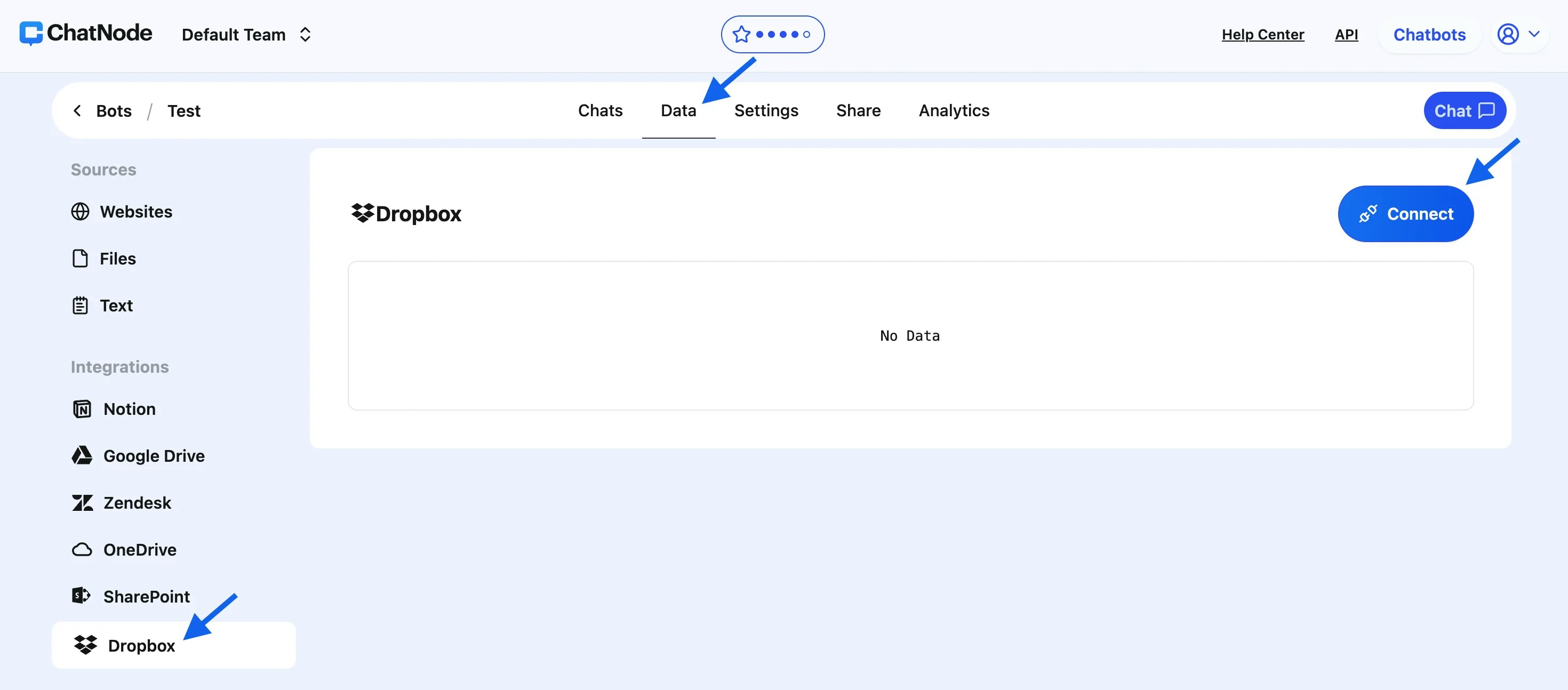
* Navigate to the **Data** section in your ChatNode dashboard.
* Under **Integrations**, click on **Dropbox**.
 2. **Connect Your Dropbox Account**:
* Click the **Connect** button in the Dropbox panel.
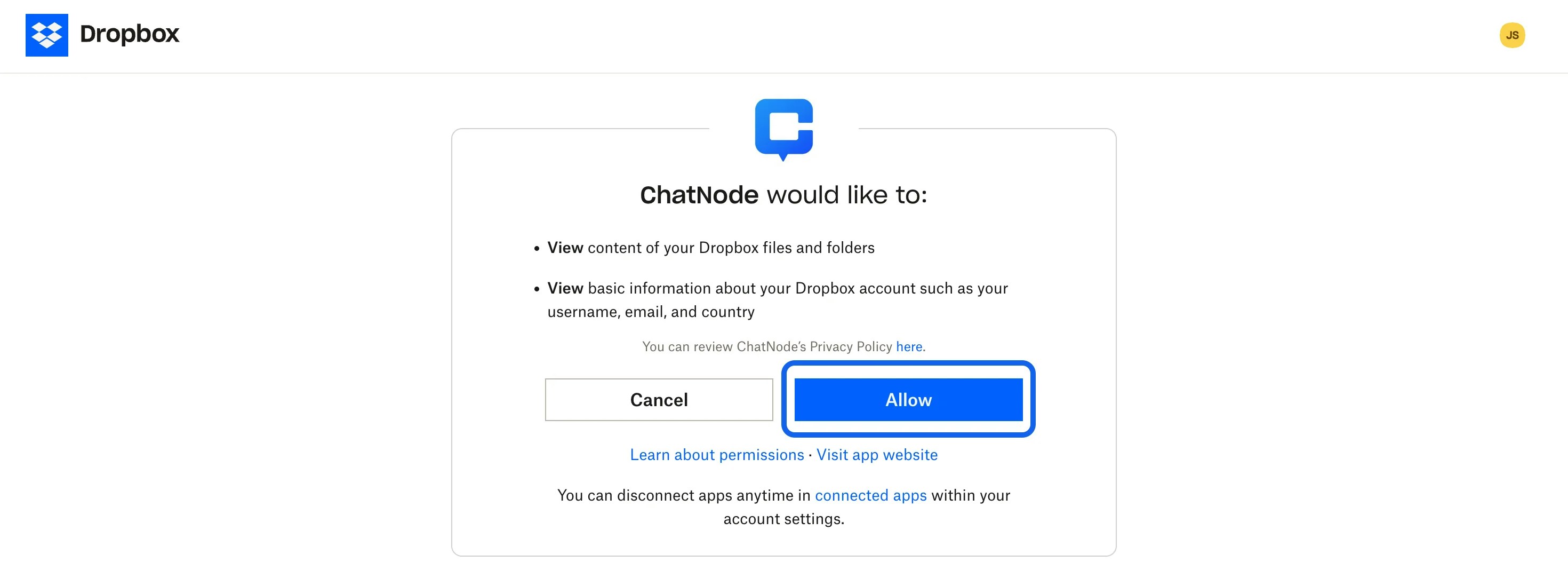
* A pop-up will appear requesting your permission for ChatNode to access your Dropbox account.
* Click **Allow** to grant the necessary permissions.
2. **Connect Your Dropbox Account**:
* Click the **Connect** button in the Dropbox panel.
* A pop-up will appear requesting your permission for ChatNode to access your Dropbox account.
* Click **Allow** to grant the necessary permissions.
 3. **Confirm Connection**:
* Once the connection is successful, a confirmation pop-up will notify you that your Dropbox account is now linked to ChatNode.
4. **Select Files for Training**:
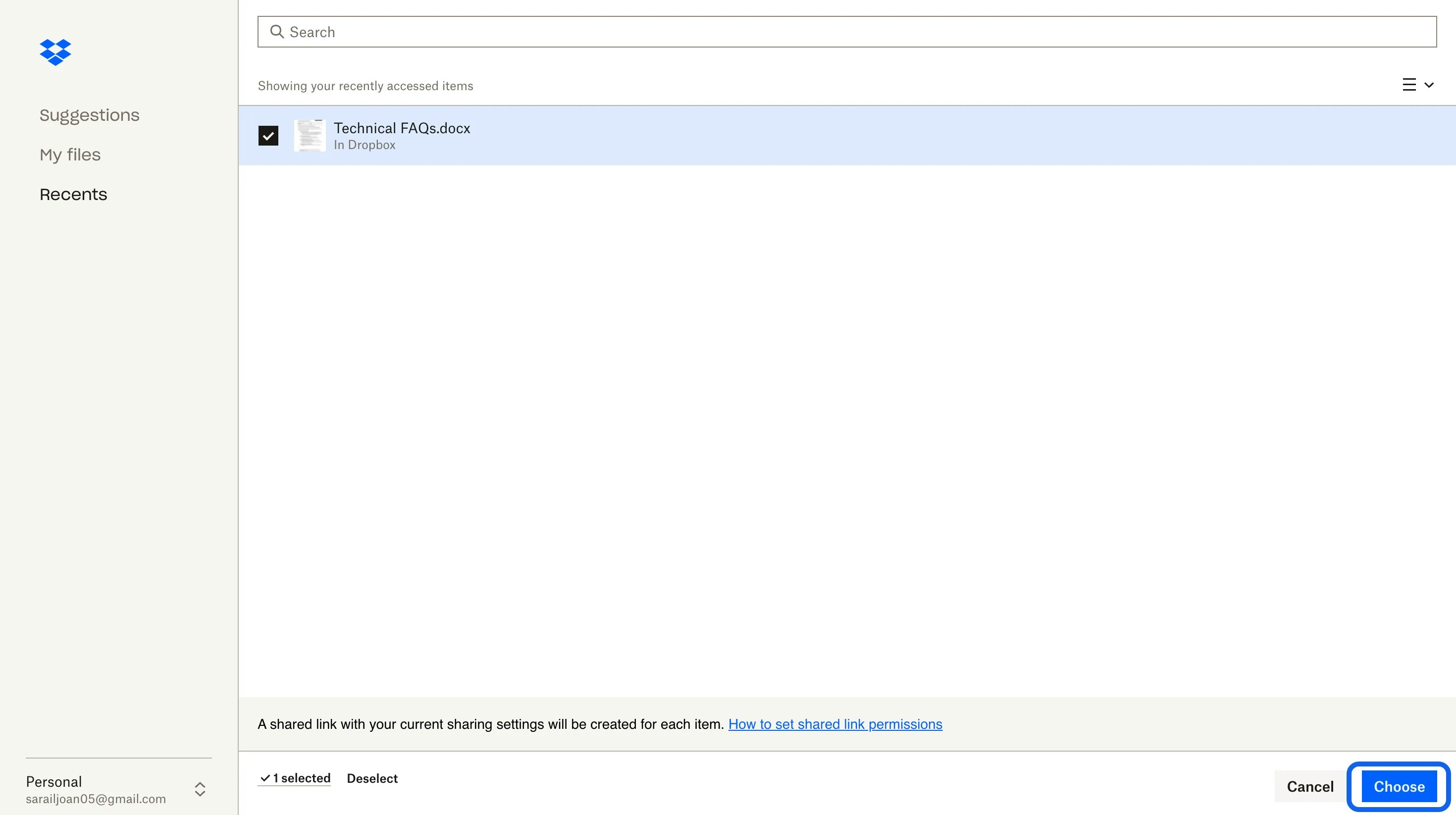
* Click **Select Files** to browse through your Dropbox files.
* Tick the checkboxes next to the files you want to upload and train.
* After selecting the files, click **Choose**.
3. **Confirm Connection**:
* Once the connection is successful, a confirmation pop-up will notify you that your Dropbox account is now linked to ChatNode.
4. **Select Files for Training**:
* Click **Select Files** to browse through your Dropbox files.
* Tick the checkboxes next to the files you want to upload and train.
* After selecting the files, click **Choose**.
 5. **Automatic Upload and Training**:
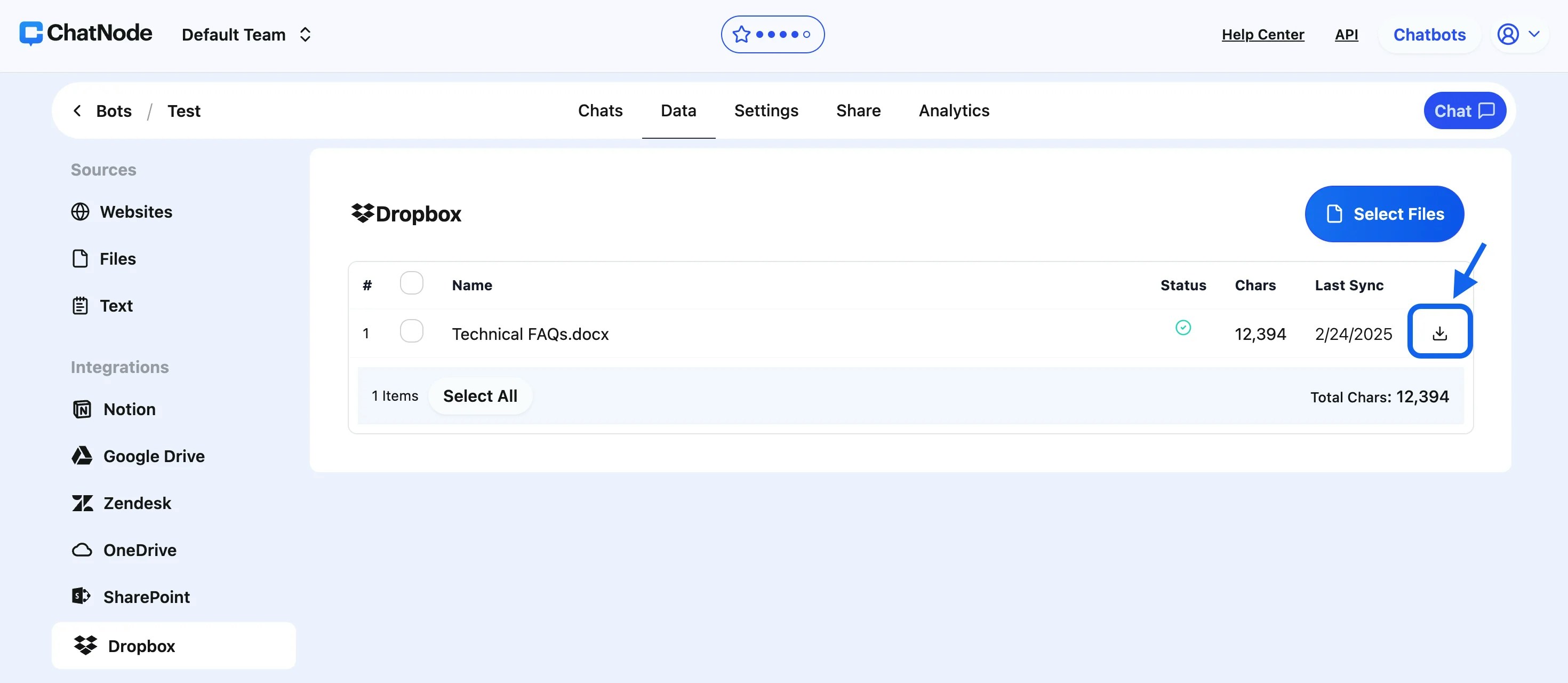
* The selected files will be uploaded to ChatNode and automatically trained for agent use.
* You can monitor the training status in the Dropbox panel.
#### Managing Your Integrated Files:
1. **Download Files**:
* Each uploaded file includes an option to download its content in `.txt` format for offline review or storage.
5. **Automatic Upload and Training**:
* The selected files will be uploaded to ChatNode and automatically trained for agent use.
* You can monitor the training status in the Dropbox panel.
#### Managing Your Integrated Files:
1. **Download Files**:
* Each uploaded file includes an option to download its content in `.txt` format for offline review or storage.
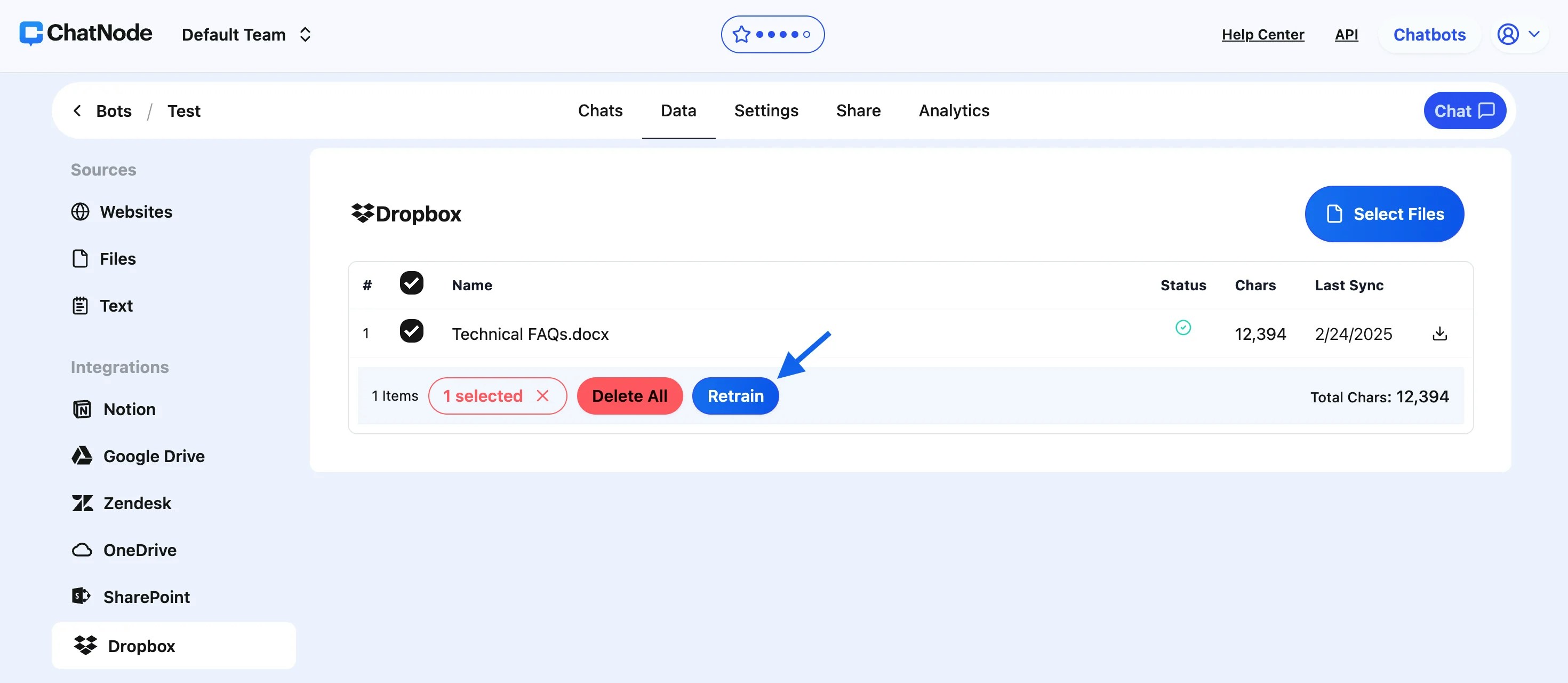
 2. **Retrain with Updated Information**:
* If a file in Dropbox has been updated, tick the checkbox next to the updated file in ChatNode and click **Retrain**. This ensures your agent uses the most current data.
2. **Retrain with Updated Information**:
* If a file in Dropbox has been updated, tick the checkbox next to the updated file in ChatNode and click **Retrain**. This ensures your agent uses the most current data.
 3. **Add or Remove Files**:
* **To Include New Files**: Repeat the **Select Files** process to upload additional data.
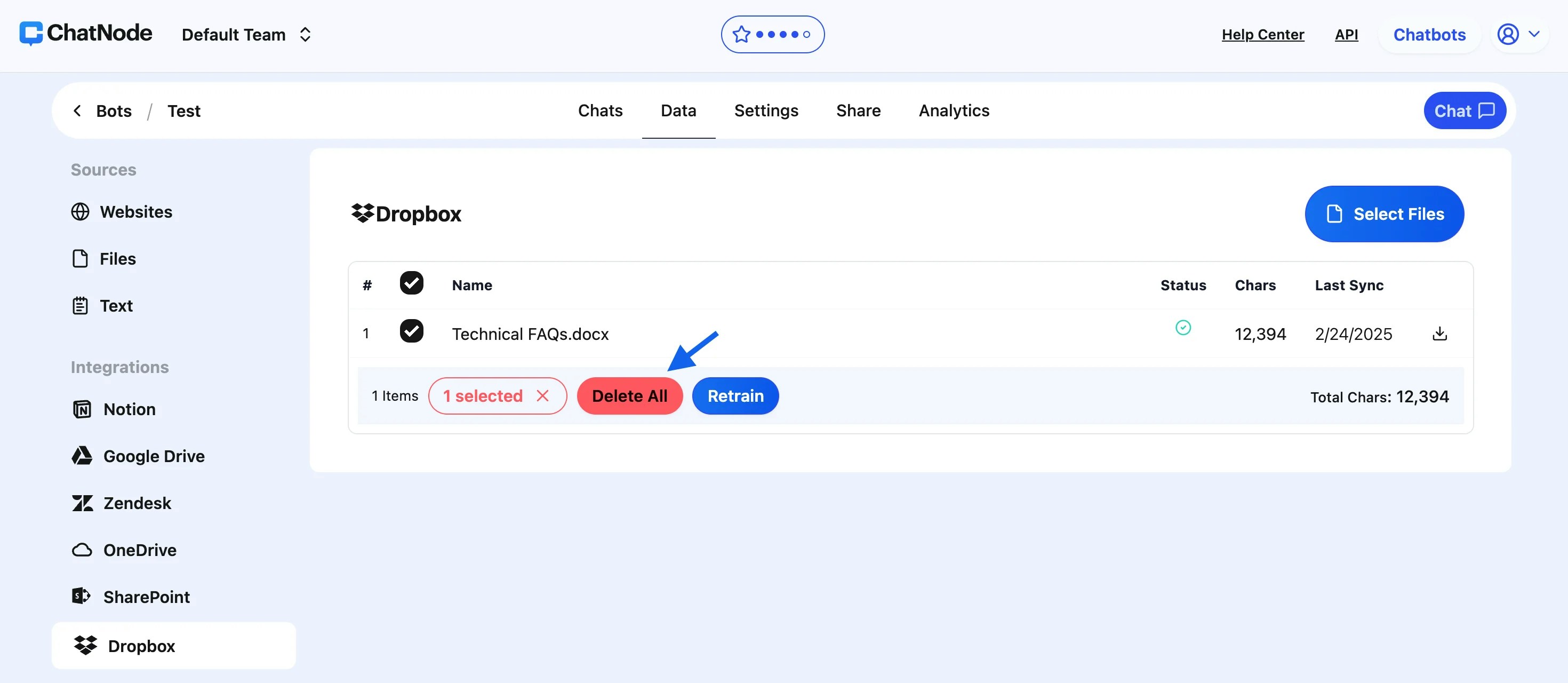
* **To Remove Files**: Tick the checkbox next to the file you wish to delete and click **Delete**. This will remove the file from ChatNode’s training dataset.
3. **Add or Remove Files**:
* **To Include New Files**: Repeat the **Select Files** process to upload additional data.
* **To Remove Files**: Tick the checkbox next to the file you wish to delete and click **Delete**. This will remove the file from ChatNode’s training dataset.
 #### Benefits of Dropbox Integration:
* **Effortless Data Synchronization**: Quickly connect and upload files from Dropbox to ChatNode.
* **Real-Time Updates**: Ensure your agent remains accurate by retraining with updated files.
* **Backup Options**: Download files in `.txt` format for archival or offline usage.
#### Benefits of Dropbox Integration:
* **Effortless Data Synchronization**: Quickly connect and upload files from Dropbox to ChatNode.
* **Real-Time Updates**: Ensure your agent remains accurate by retraining with updated files.
* **Backup Options**: Download files in `.txt` format for archival or offline usage.