> ## Documentation Index
> Fetch the complete documentation index at: https://docs.chatnode.ai/docs/llms.txt
> Use this file to discover all available pages before exploring further.
# Calendly
Setting Up the Calendly Action
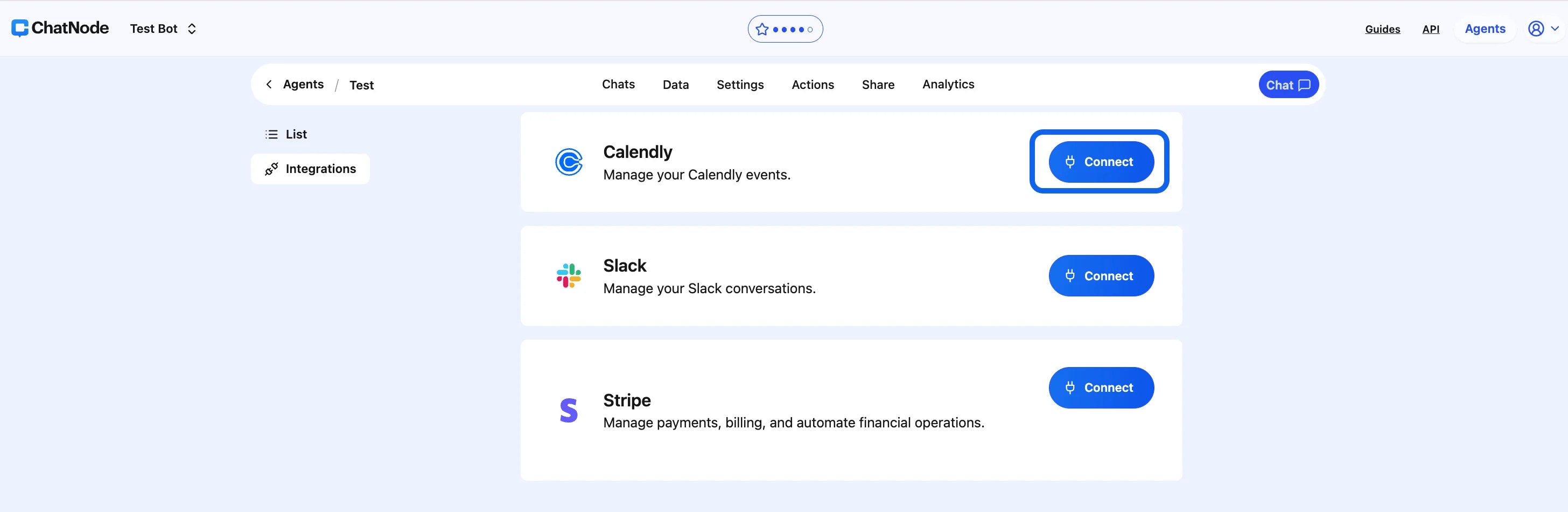
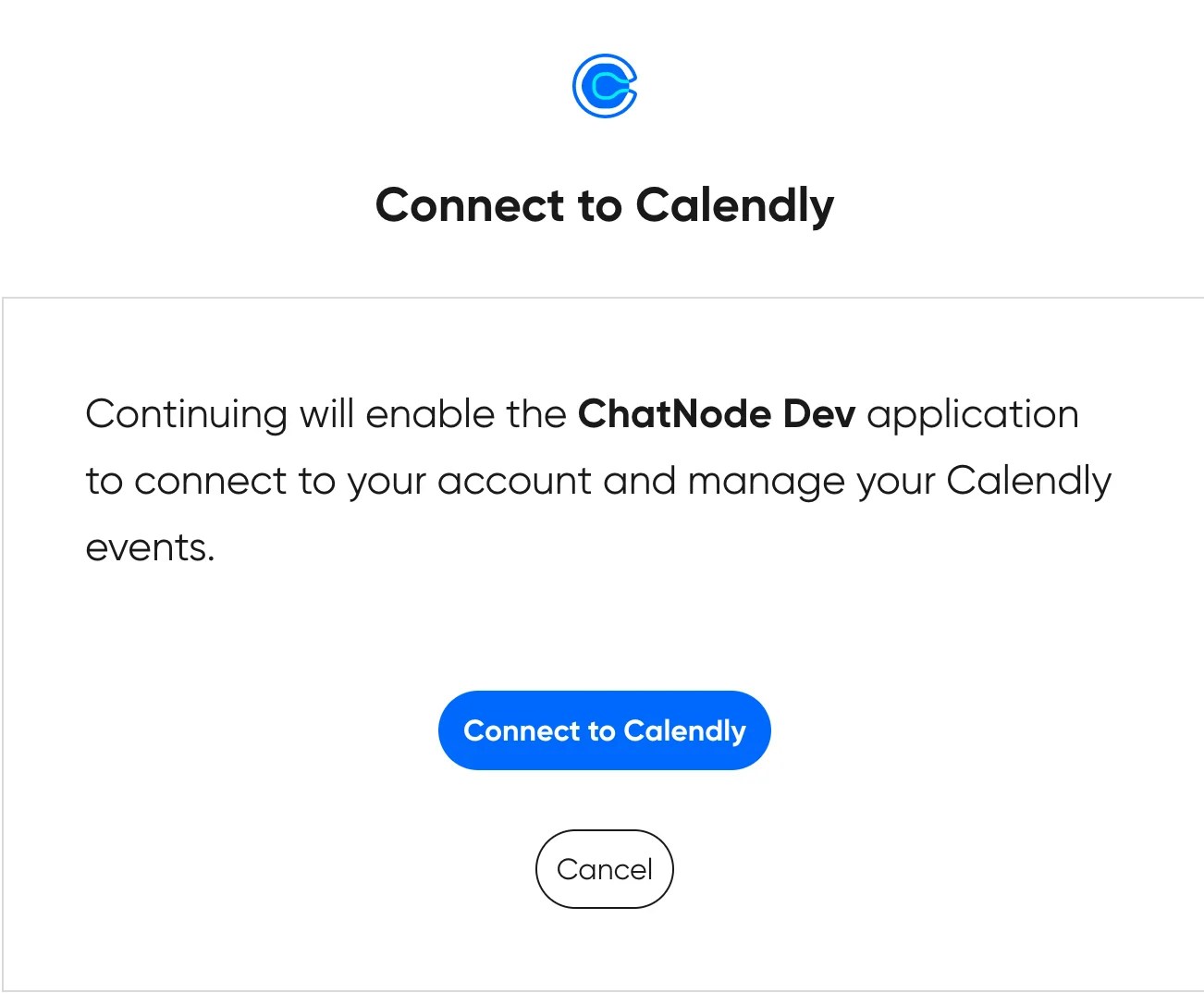
### **1. Connect Your Account**
* Before creating this action, link your Calendly account.
* Once the integration is complete, return to the **Actions** page to set up your Calendly action.
 ### **2. Create the Action**
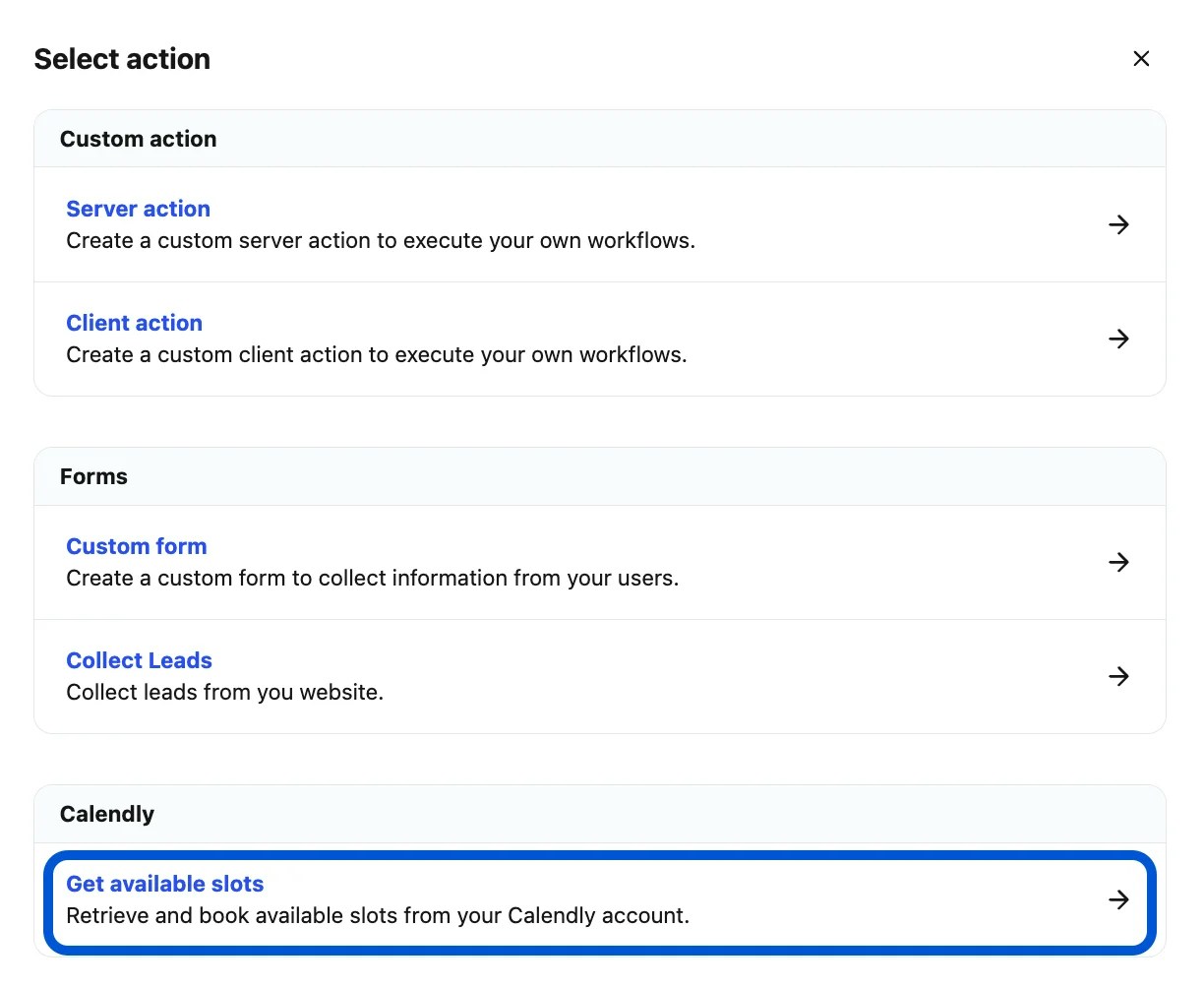
* Go to **List** under the **Actions** tab.
* Scroll down and click **Calendly → Create**.
### **2. Create the Action**
* Go to **List** under the **Actions** tab.
* Scroll down and click **Calendly → Create**.
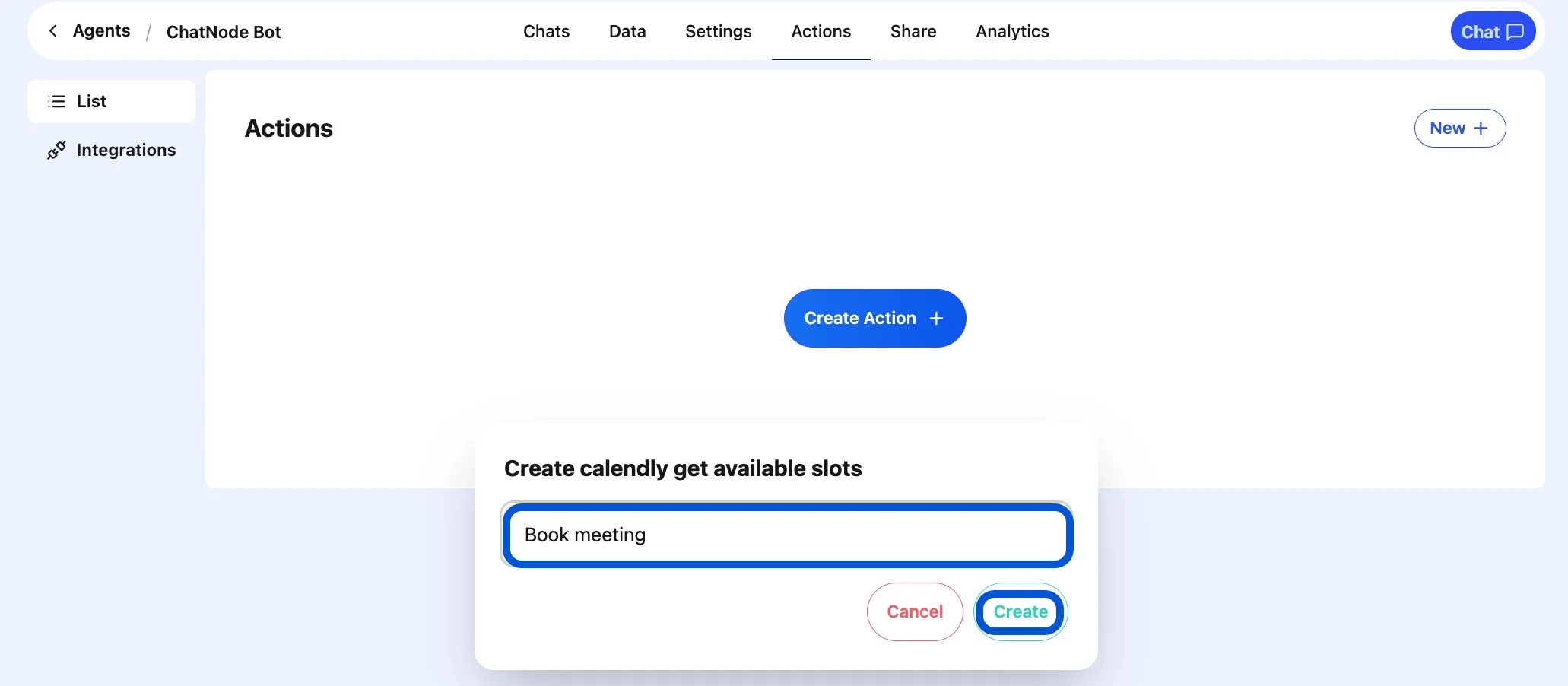
 * Enter an **Action Title** (e.g., Book Meeting).
 * Fill out the **Basic Settings** field.
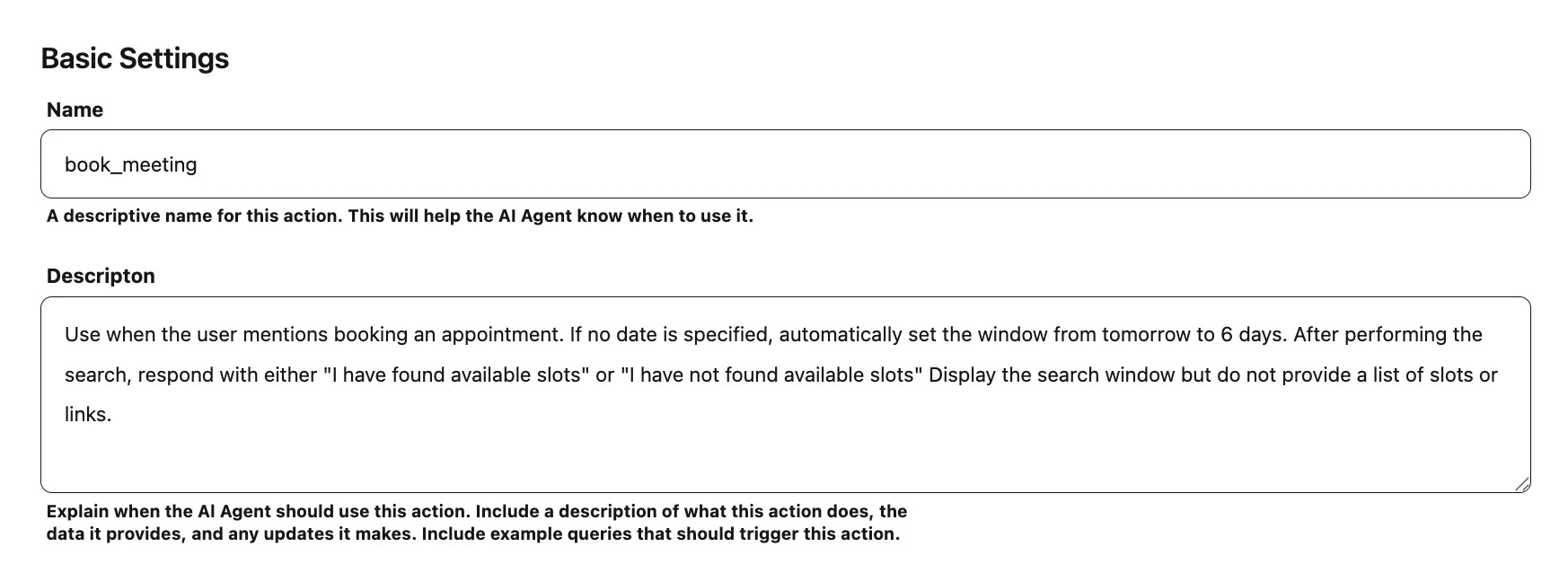 ### **3. Define When to Use It**
* Describe the situations or customer requests that should trigger this action.
* Add clear instructions for how the agent should behave when the action is called.
### **4. Choose an Event**
* Select the specific event from which the AI agent should pull available time slots.
* This step is required to proceed.
### **3. Define When to Use It**
* Describe the situations or customer requests that should trigger this action.
* Add clear instructions for how the agent should behave when the action is called.
### **4. Choose an Event**
* Select the specific event from which the AI agent should pull available time slots.
* This step is required to proceed.
 ### **5. Enable the Action**
* Once the action has been created and configured, toggle **Enable** to activate it.
### **5. Enable the Action**
* Once the action has been created and configured, toggle **Enable** to activate it.
 ### **6. Final Step**
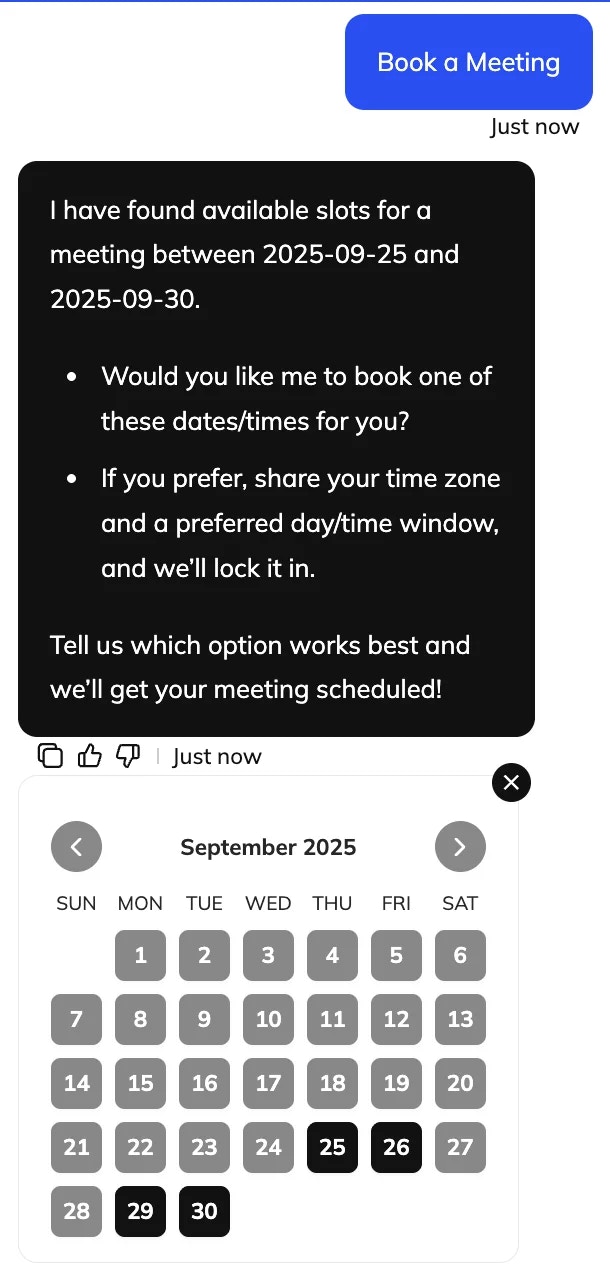
Once enabled, your AI agent will be able to:
* Display available slots from Calendly
* Help users book appointments directly in the chat
### **6. Final Step**
Once enabled, your AI agent will be able to:
* Display available slots from Calendly
* Help users book appointments directly in the chat
 ### **Examples:**
* “Trigger this action when a user says they’d like to book an appointment.”
* The booking window should not exceed 1 week. If a user requests a longer timeframe, keep the same start date but set the end date 1 week later. Let the user know that the maximum booking window is 1 week.”
Once configured, your AI agent will be able to display available slots from Calendly and help users book appointments directly in the chat.
### **Examples:**
* “Trigger this action when a user says they’d like to book an appointment.”
* The booking window should not exceed 1 week. If a user requests a longer timeframe, keep the same start date but set the end date 1 week later. Let the user know that the maximum booking window is 1 week.”
Once configured, your AI agent will be able to display available slots from Calendly and help users book appointments directly in the chat.